Working together
Set who a role can manage and which roles it can give
Use the People tab to set member-management scope and control the roles available for invitations and assignment.
At a glance
- 1Open the role editor and select People. Turn on Can manage members only if members of this role should be able to change other people's memberships.
- 2When member management is on, choose the scope: Own tzevet limits management to the relevant team; Whole shevet allows shevet-wide member management, subject to the role's other permissions and hierarchy.
- 3Under Roles to give, choose None when the role should not offer invitations or assign other roles. Choose All only for a role trusted to give any available role, including roles added later.
- 4Choose Selected to limit invitations and role assignment to named roles. Tick each role that this one may give. Review this list whenever a new role is created, because new roles are not automatically in a selected list.
- 5Turning off Can manage members also clears the role-giving choices and returns the scope to Own tzevet. Recheck the People tab if you turn member management back on later.
- 6Save changes in the header. Then test the intended workflow from Manage Shevet's Members or Invites area using an account with this role, or verify that the expected choices appear for that member.
Step-by-step walkthrough
1.Limit who this role can manage and which roles it can give
Management scope and roles to give are separate. A person may manage their tzevet without being able to assign every role.
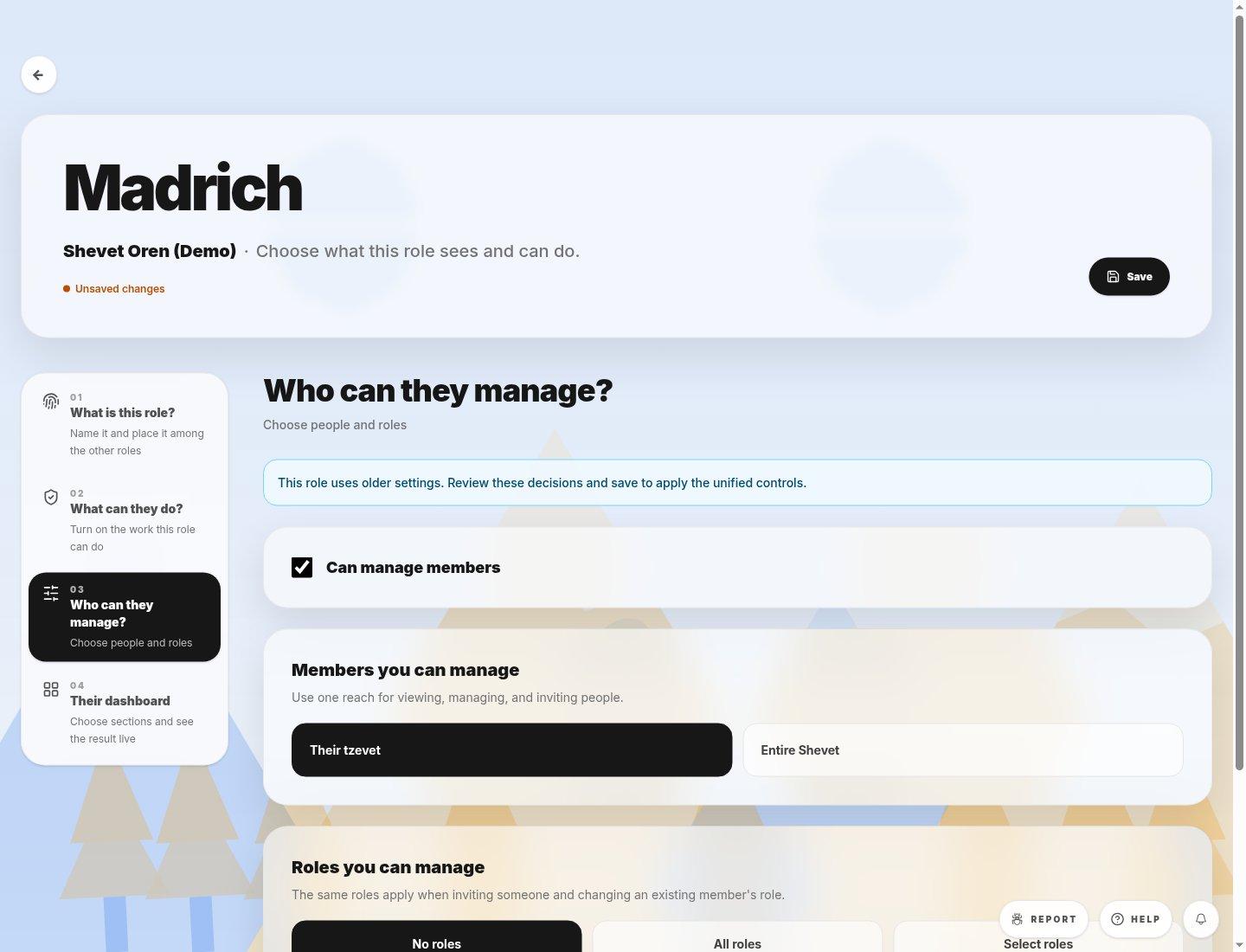
- People tabControls member management for everyone assigned this role.
- Management scopeOwn tzevet limits changes to the applicable team; Whole shevet is broader. Hierarchy still applies.
- 1Turn on Can manage members only when this role needs to change memberships. Start with Own tzevet where it fits.
- 2In Roles to give, choose None, Selected, or All. Use Selected to name specific roles; a future role is not added to that list automatically.
- 3Save and check the choices the role can see in Members or Invites. Recheck scope if you later disable and re-enable member management.
If you cannot do this
- You need permission to customize roles to change these settings. Locked roles and archived shevatim are read-only.
- A role cannot gain member-management reach simply by showing a button; the server also checks scope and allowed roles.
Where to look
People
the role editor navigation
Roles to give
the People tab below management scope