Working together
Set a role's capabilities and Eldar Junior access
Choose what members in a role can do across Campfire, including the three Eldar Junior levels.
At a glance
- 1Open a role from Manage Roles and select Capabilities. The settings here belong to the role, so changing them affects members assigned that role in this shevet after you save.
- 2At the top, choose Eldar Junior: No access hides and blocks it; Context and suggestions lets it read available context, comments, and web results and offer ideas without full Peula writing or edit tools; Full access permits drafting and proposed changes for review. A member's tzevet does not change this level.
- 3In Editors, choose who can create Peulot, submit them, mark them as needing work, approve them, and open the Peulot library inside the editor. These controls are separate from Eldar Junior access.
- 4In Assignments, decide who can manage shared assignment work. In Manage, choose access to Manage Shevet and the separate powers to customize roles, manage grades, change colors, and manage members.
- 5For Finance and Machsan, select Off, View, or Manage. View allows reading; Manage adds the relevant management actions. Use the smallest level that matches the role's work.
- 6In Attendance, set basic attendance access and, separately, whether the role can see the full shevet attendance view. In Maslul, set read/write access and the separate permission to manage segment dates.
- 7In Grades, choose whether the role can view the shevet Peulot library. Shared Library management and announcement creation or management have their own controls; switch on only the work this role should perform.
- 8Choose Save changes in the header. Reopen the role if you need to verify the saved selection; a missing dashboard action can also depend on these capabilities, not only on Dashboard tab choices.
Step-by-step walkthrough
1.Match access to the work this role does
Changes in Capabilities apply to the role throughout this shevet. Hiding or showing a dashboard section is not a substitute for granting the underlying capability.
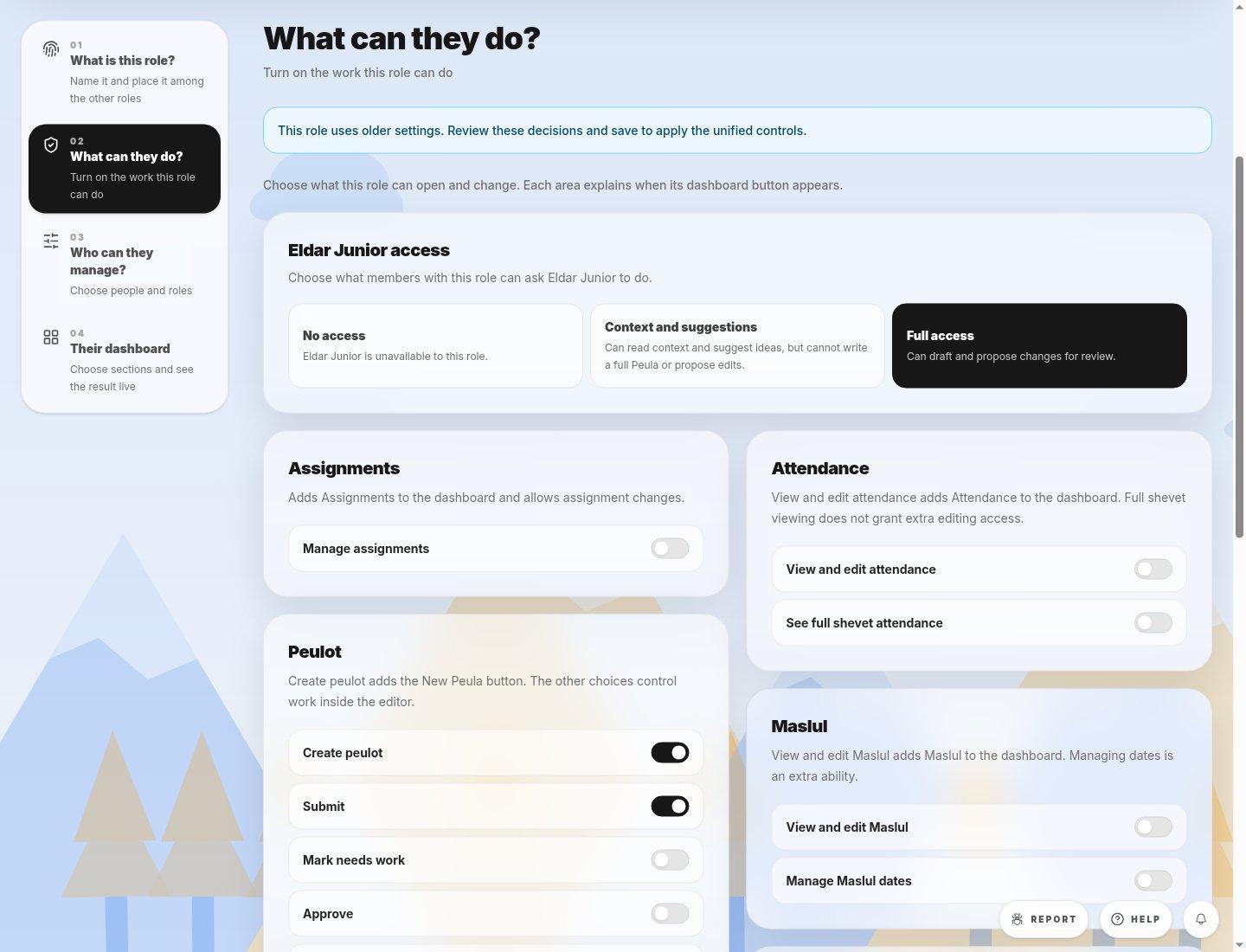
- Capabilities tabReview the feature groups one at a time rather than enabling everything.
- Eldar Junior levelThis AI level is separate from permission to create, submit, or approve Peulot.
- 1Open the role in Manage Roles and select Capabilities. Decide what work its members should actually do.
- 2For areas with Off, View and Manage, choose View when members only need to read. Enable approvals or full-shevet views only when required.
- 3Review related features such as editor access and Eldar Junior separately. Save and reopen the role to verify the chosen levels.
If you cannot do this
- Only members allowed to customize roles can edit capabilities. Locked roles and archived shevatim are read-only.
- Site-wide Eldar Junior hourly rate limits are controlled by Campfire admins in Admin controls, not in this role editor.
Where to look
Capabilities
the role editor navigation
Eldar Junior access
the top of the Capabilities tab