Working together
Arrange a role's dashboard and use the preview
Choose the dashboard sections a role sees and inspect the sample preview before saving.
At a glance
- 1Open a role and choose Dashboard. The Content sections checkboxes control which role-specific sections are included on that role's dashboard.
- 2Choose the sections that help this role act: Awaiting review for review work, Upcoming by grade for grade planning, and Needs work for plans that need another pass.
- 3Tzuid by Grades and Machsan health are available only when the role can read Machsan. If those options are disabled, return to Capabilities and review the Machsan access level first.
- 4Look at the live dashboard preview below the checkboxes. It uses sample people, Peulot, grades, and equipment, so use it to inspect layout and emphasis rather than to check real shevet data.
- 5If an action or destination is missing, check Capabilities and People as well: the editor keeps dashboard actions aligned with what the role is allowed to do. Selecting a visual section does not grant permission for its underlying feature.
- 6Save changes in the header, then view the dashboard with a member assigned this role to confirm the real experience. Return to the editor if the selected sections do not match the role's daily work.
Step-by-step walkthrough
1.Preview what the role will see
The dashboard tab changes which sections are emphasized for a role. The preview uses sample content, not the shevet’s actual records.
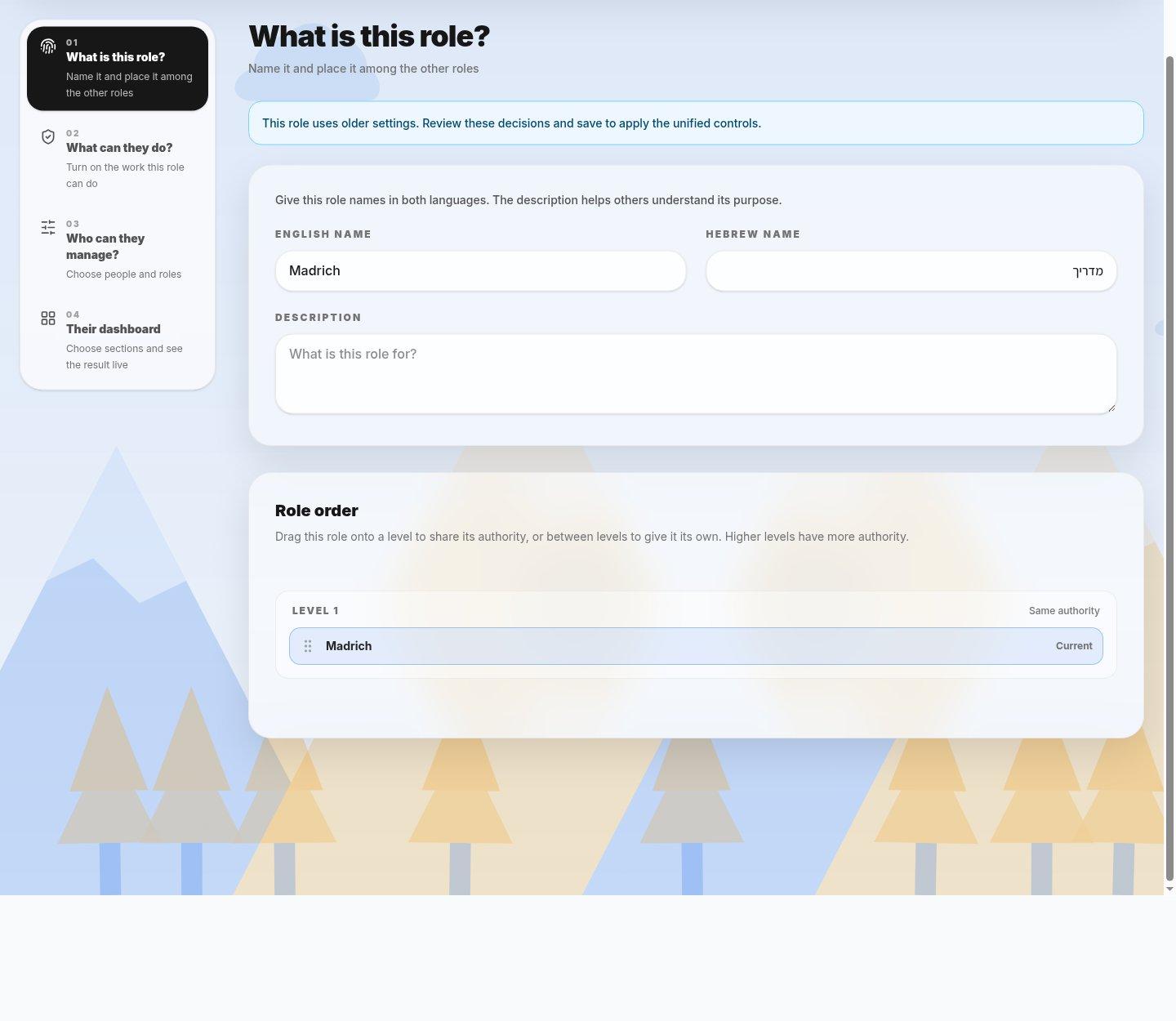
- Dashboard tabSelect sections that fit the role’s daily work.
- PreviewInspect the layout and order here without treating the sample cards as real work.
- 1Open Dashboard in the role editor. For a reviewer, include Awaiting review; for planning, consider Upcoming by grade.
- 2If a Machsan section is disabled, check whether this role can read Machsan under Capabilities.
- 3Review the preview, save, and then check the actual dashboard with an appropriate test account assigned that role.
If you cannot do this
- Changing dashboard sections requires role-management permission. Locked roles and roles in archived shevatim are read-only.
- The preview is illustrative and does not show the role's real members or live shevet records.
Where to look
Dashboard
the role editor navigation
Live dashboard
below the Content sections checkboxes