Getting started
Navigate the Home tab
Use the Home tab as your starting point for your Peulot, calendar, and work that needs attention.
At a glance
- 1Use the navigation dock at the bottom of the dashboard to choose Home when another dashboard area is open.
- 2Use Your Peulot to find plans without a date or with a date of today or later, including plans from your tzevet or shared with you.
- 3Use the calendar section to see the week and open dates or events.
- 4Scroll for any review or attention sections that are available for your tafkid.
Step-by-step walkthrough
1.Get to know the Home tab
Home is the first page you see when you open a shevet. It brings together the Peulot you are working on, the week's calendar, and the review queues that apply to your tafkid.
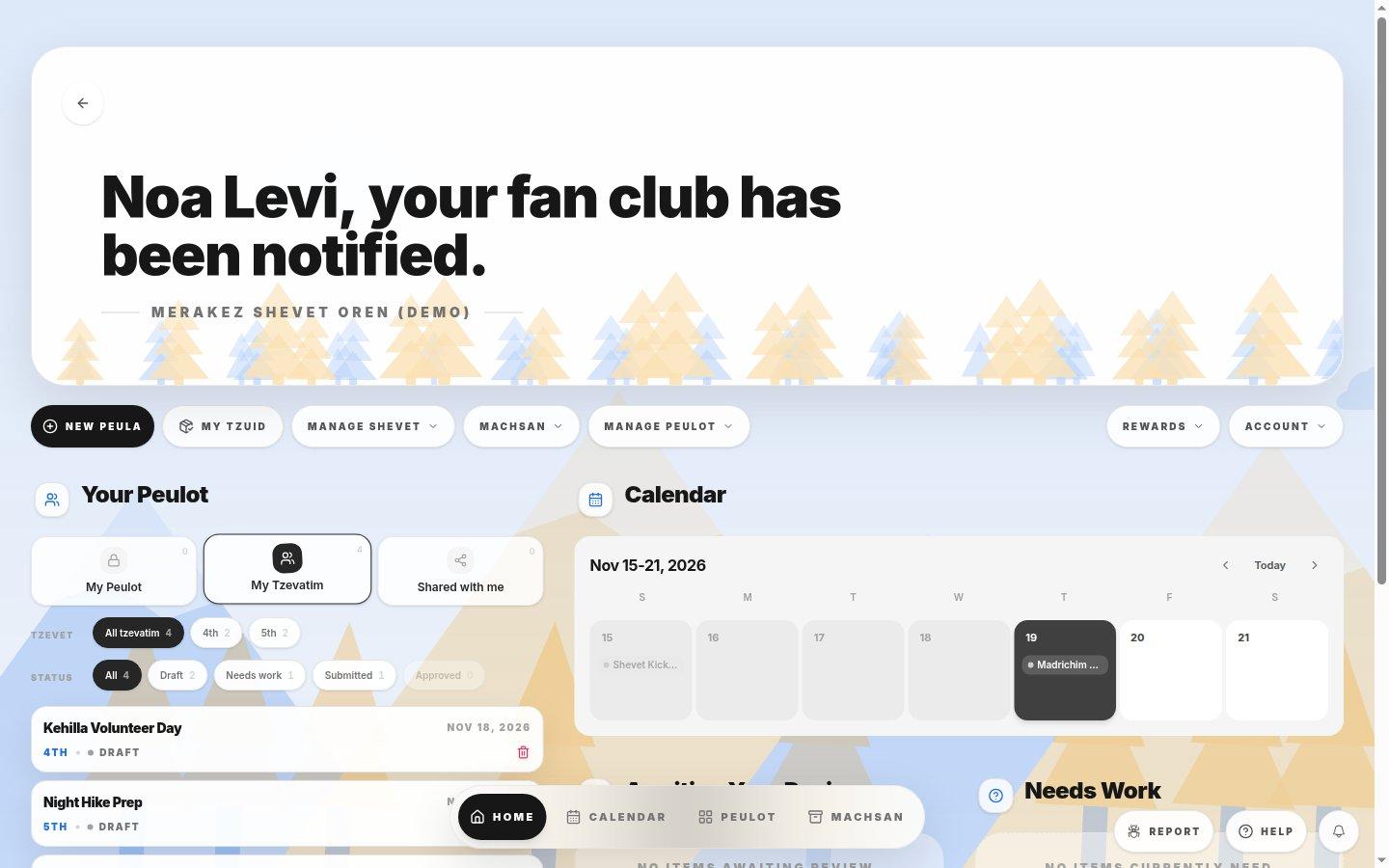
- Action rowStart a New Peula, open My Tzuid, or open the Manage Shevet, Machsan and Manage Peulot menus. You only see the menus your tafkid allows.
- Rewards and AccountRewards shows points and badges; Account opens your profile, language and security settings.
- Your Peulot viewsSwitch between Peulot you own (My Peulot), Peulot for your tzevatim (My Tzevatim) and Peulot other shevatim shared with you. The small number is how many each view holds.
- Tzevet and status filtersNarrow the list to one tzevet or one status (Draft, Needs work, Submitted, Approved). Filters only change what you see.
- Peula cardShows the Peula title, its date, tzevet and status. Select the card to open it in the editor.
- Weekly calendarShows this week's events. Use the arrows to move between weeks and Today to jump back. Select a day or event to open it.
- Navigation dockSwitch between Home, Calendar, Peulot and Machsan without leaving the dashboard.
- Report and HelpReport sends a bug or idea to the Campfire team. Help opens guides for the page you are on.
2.Find and open a Peula
- 1Choose a view: My Peulot for your own plans, My Tzevatim for every plan in your tzevatim, or Shared with me for plans from other shevatim.
- 2Use the Tzevet chips to show one tzevet, and the Status chips to show only Drafts, plans that Need work, Submitted plans or Approved plans.
- 3Read the date and status on each card. Plans without a date, or with a date of today or later, appear here; older plans move to the Peulot library.
- 4Select a card to open the Peula in the editor.
Tip: If a Peula you expect is missing, set both filters back to All before assuming it was deleted.
3.Use the calendar and review sections
- 1Look at the calendar to see what is happening this week. Today's date is highlighted.
- 2Use the arrows to look ahead or back, then Today to return to the current week.
- 3Scroll down for Awaiting Your Review and Needs Work. They list Peulot waiting for you to approve, or plans that were sent back for changes.
- 4Use the dock at the bottom to move to the full Calendar, Peulot or Machsan areas.
If you cannot do this
- The bottom navigation only appears when your dashboard has more than one available area.
Where to look
Home
the navigation dock at the bottom of the shevet dashboard