Working together
Manage Eldar Junior access and rate limits
Set each role's Eldar Junior access in the role editor. Site admins set hourly limits for everyone in Admin controls.
At a glance
- 1On the shevet dashboard, open Manage Shevet, then choose Manage Shevet. Select Manage Roles and open the role you want to change.
- 2In the role editor's Capabilities tab, choose Eldar Junior access: No access, Context and suggestions, or Full access. Save the role.
- 3Context and suggestions can read the Peula, comments, and web results and offer ideas. It cannot write a complete Peula or propose edits. Full access also allows draft and proposed changes for review.
- 4Access is assigned by role. A member's tzevet does not change their Eldar Junior level.
- 5A Campfire site admin can open Admin controls → Eldar Junior to set messages per user per hour across all shevatim and an optional website-wide hourly limit. A website-wide limit of 0 means no site-wide cap.
- 6Members choose their own ChatGPT or Claude model and Low or High reasoning in the Eldar Junior window header.
Step-by-step walkthrough
1.Choose the AI access that fits the role
The level is set per role, not per tzevet. Rate limits and the editor’s model choice are separate from that access.
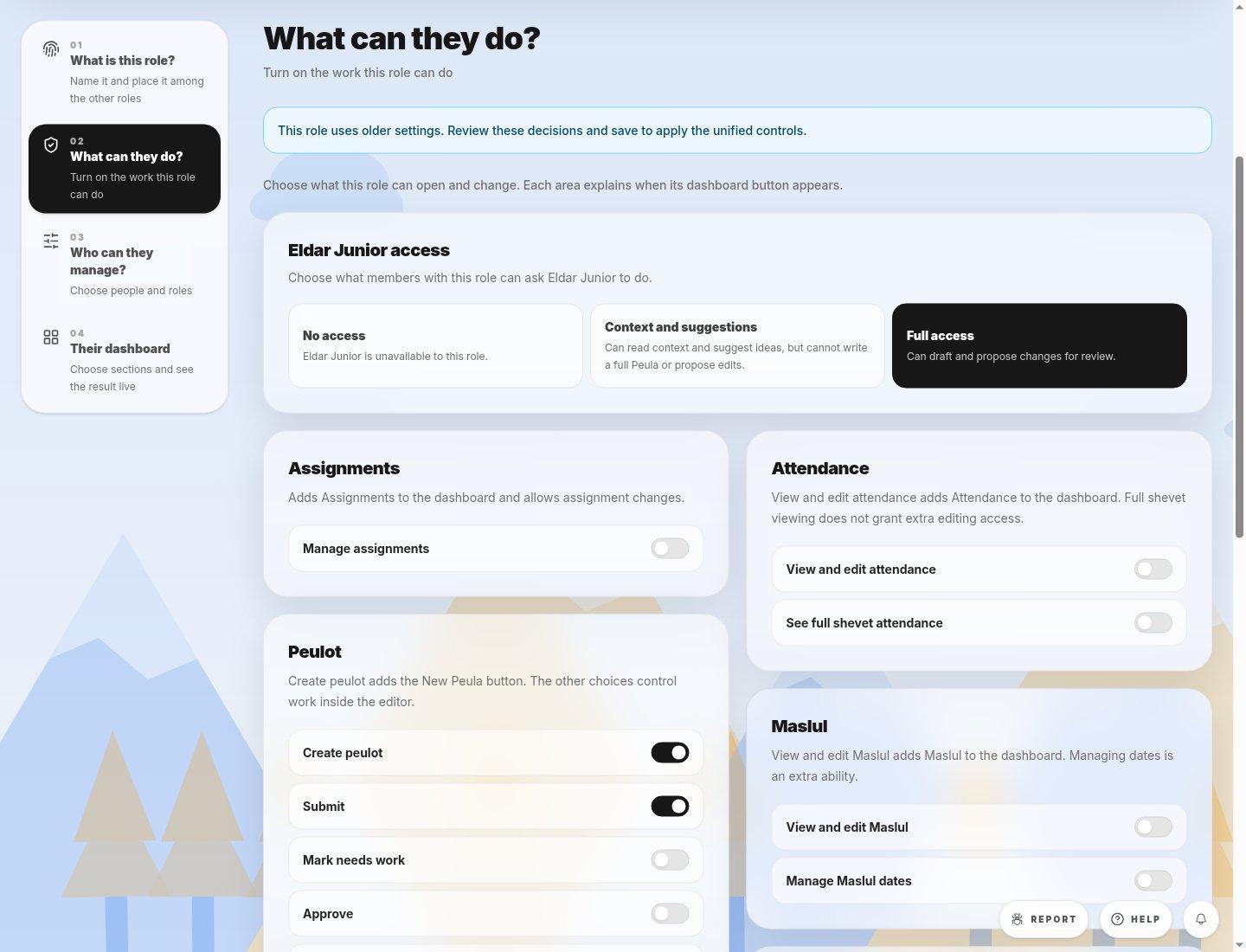
- Eldar Junior accessNo access blocks it. Context and suggestions offers ideas without writing a full Peula. Full access permits draft and proposed edits.
- 1In Manage Roles, open the intended role and choose Capabilities.
- 2Pick the lowest level that suits the role and save. Check that the experience matches the selected level for a member of that role.
- 3For hourly limits across shevatim, a site admin uses the separate Eldar Junior admin controls. Members choose their own model and reasoning level in the editor panel.
If you cannot do this
- Changing a role requires role-management permission; archived or locked roles are read-only.
- Only a Campfire site admin can change hourly rate limits.
Where to look
Eldar Junior access
the Capabilities tab of a role editor