Planning a Peula
Use Eldar Junior in the Peula editor
Open the editor-aware AI when you want help improving or changing the Peula, then review every proposed change before relying on it.
At a glance
- 1Select Eldar Junior in the editor action row. On smaller screens, open More to find it.
- 2Ask for a specific outcome and name the part of the Peula you mean—for example, improve an opening activity, simplify instructions, or make a section fit a time limit.
- 3Eldar Junior has awareness of the plan you are editing, but it is still a collaborator: read its response and inspect any suggested edits before you keep them.
- 4Use your normal editor controls, comments, and version history to review the result. If the suggestion is not right, change it, undo it, or restore an earlier version.
- 5Do not use AI as a substitute for the submission and approval flow. The people responsible for the plan still review and approve it through its status actions.
Step-by-step walkthrough
1.Ask for one concrete improvement
Eldar Junior can work with the Peula context allowed by your role. Treat its output as a suggestion, not a submitted or approved plan.
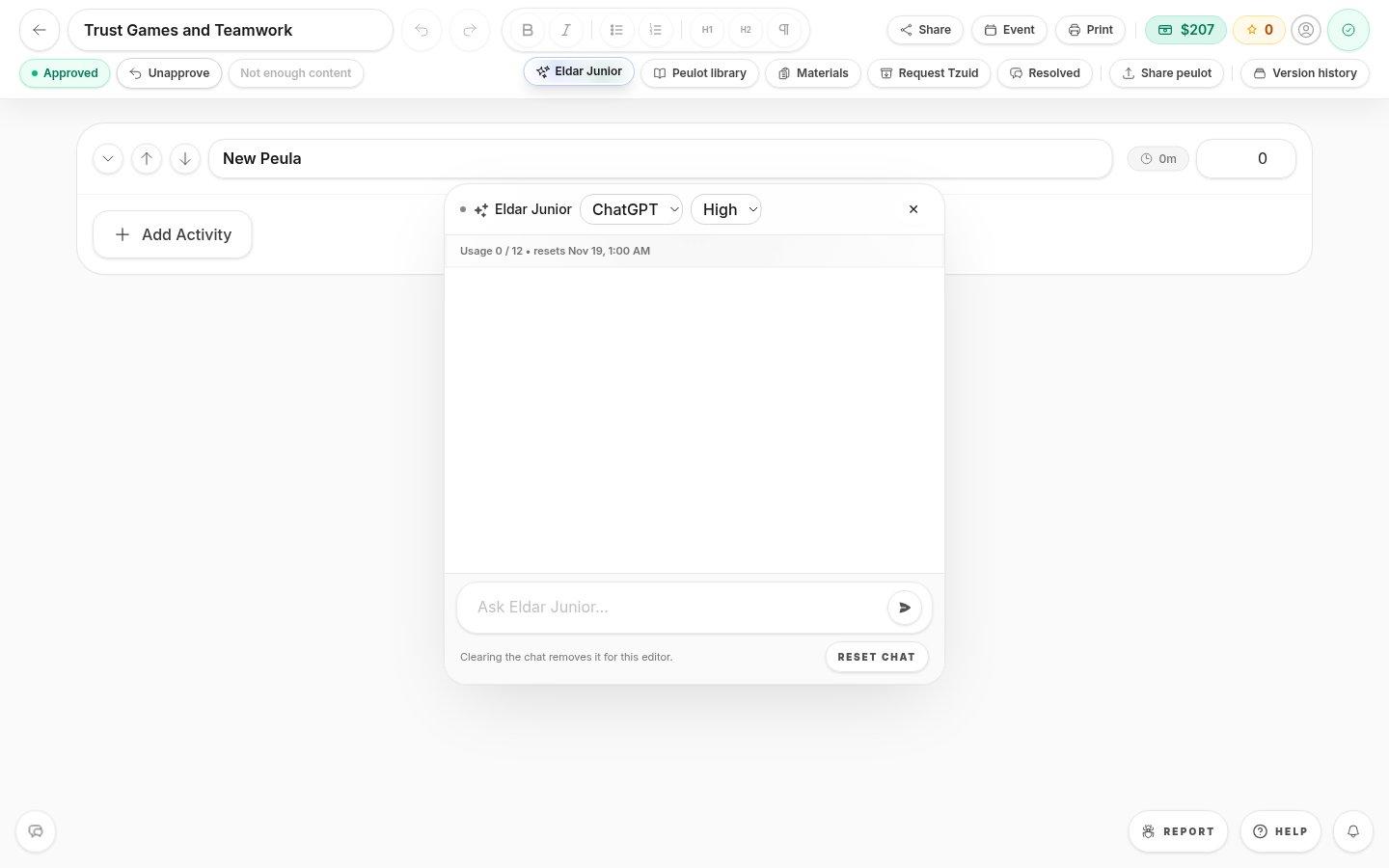
- Ask Eldar JuniorDescribe which part of the plan to improve and the result you want.
- 1Open Eldar Junior from the action row or More. Name the section and a measurable goal, such as shortening the opening game to five minutes.
- 2Read the result and compare it against the plan. Check that suggested timing, materials and instructions fit your group before keeping any edit.
- 3Undo or use history if an edit does not fit. Submit the finished Peula through the normal review controls.
Where to look
Eldar Junior
Editor action row or More menu