Working together
Submit, review, and approve a Peula
Use statuses and comments to move a Peula from a working draft to an approved plan.
At a glance
- 1Work in Draft while the plan is still being written. When it is ready for review, use Submit beside the status pill in the editor action row.
- 2A Peula may need an attached calendar event before it can be submitted. If Submit explains that an event is missing, use its attach-event link or the Event button, then return and submit.
- 3If reviewers have not been chosen yet, the submit flow can open sharing. Add the people who can review, save the sharing change, then complete submission.
- 4Reviewers see the submitted plan and can choose Approve when it is ready, or Needs work when changes are required. Needs work returns the plan to the people editing it with the feedback to address.
- 5To give precise feedback, highlight text in the editor. The comment composer opens for that exact selection; write the note and post it. Use the Comments button in the bottom-left corner to reopen the active comment panel.
- 6Resolve a thread once its feedback has been handled. Resolved threads are kept in the Resolved comments action in the editor toolbar, so the active panel stays focused on open work.
- 7Use Unsubmit or Unapprove only when you intentionally need to move the plan back a step. Check the status pill after every action so everyone is working from the same state.
Step-by-step walkthrough
1.Move the plan through review
The status pill tracks the review state, not access. Share gives access; status actions submit, approve or return work for changes.
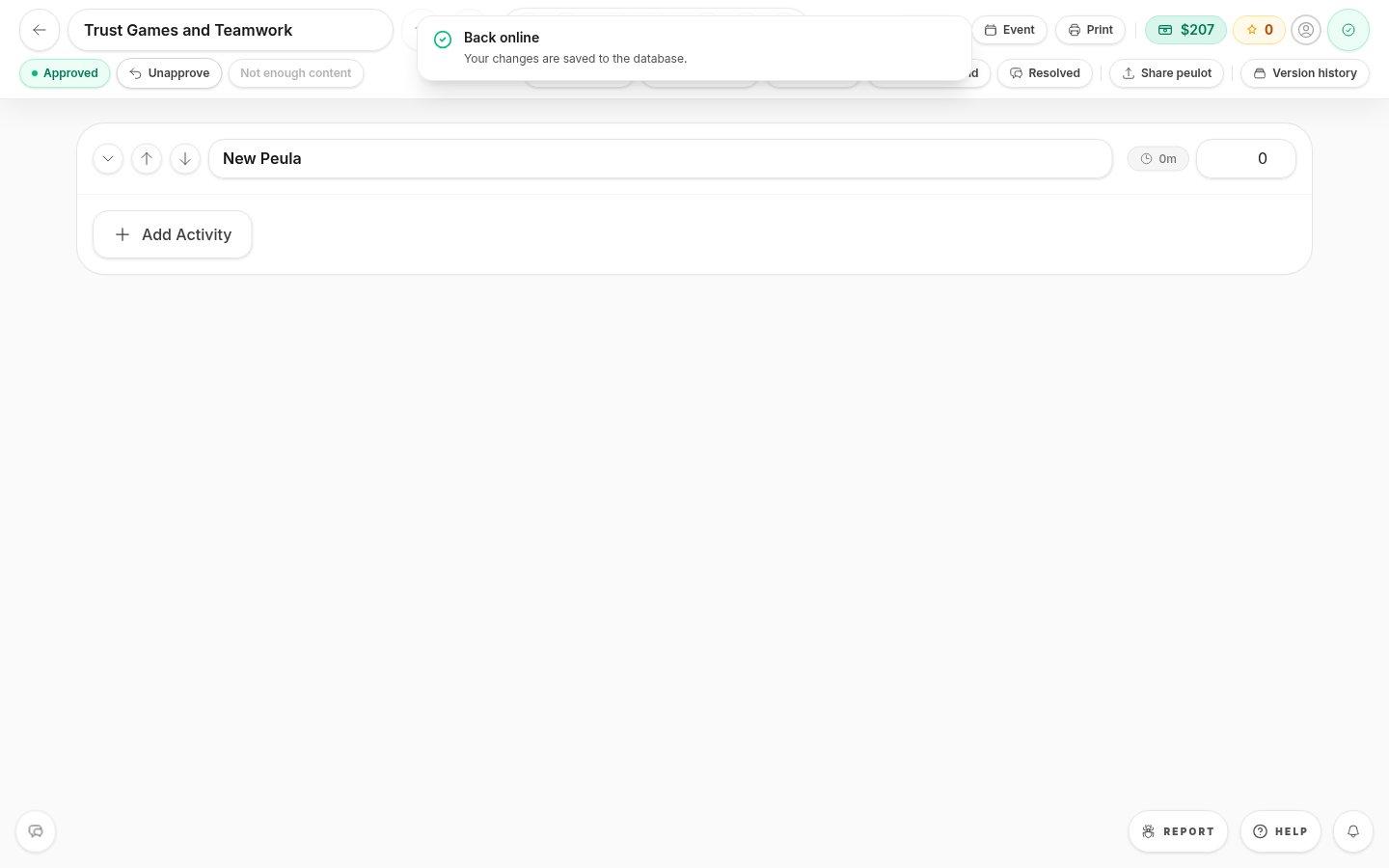
- Review status and actionsThe available action depends on the current state and your tafkid. This example shows an approved plan.
- Event and ShareIf submission is blocked on an event or reviewers, use these controls to complete the prerequisite.
- 1Finish the draft and check its save state. Choose Submit; if asked, attach a calendar event or add reviewers and try again.
- 2As a reviewer, use Approve when ready or Needs work when revisions are required. Highlight the exact text to leave a focused comment.
- 3As the author, address open comments and resolve them once handled. Check the status after resubmitting or rolling review back.
If you cannot do this
- Only people with the required edit or review permission see the corresponding status actions.
- A blocked status action explains what is missing; fix that requirement rather than trying to bypass it.
Where to look
Status actions
Start of the editor action row
Comments
Bottom-left button and selected text
Resolved comments
Editor action row or More menu