Planning a Peula
Print a Peula and review its version history
Make a readable copy for the field and use version history to understand or recover past work.
At a glance
- 1Select Print in the top-right editor actions. Wait while Campfire prepares the print layout, then use your browser or device print dialog to choose a printer, paper options, or Save as PDF.
- 2Printing does not change the plan. If you need an editable offline file instead, use Share and then Export.
- 3Open Version history from the editor action row or More menu to browse saved versions. Select a version to preview what the Peula looked like at that point.
- 4Compare carefully before restoring or reapplying work. Version history is for recovering from an unwanted change or understanding what changed, not for replacing normal collaboration comments.
- 5If you are unsure whether recent work has been saved, check the save indicator first; then use history only after the current save state is clear.
Step-by-step walkthrough
1.Make a copy or inspect an earlier version
Print is for reading or taking the Peula offline. Version history is for checking past saved states. Neither opening the history nor printing changes the current plan.
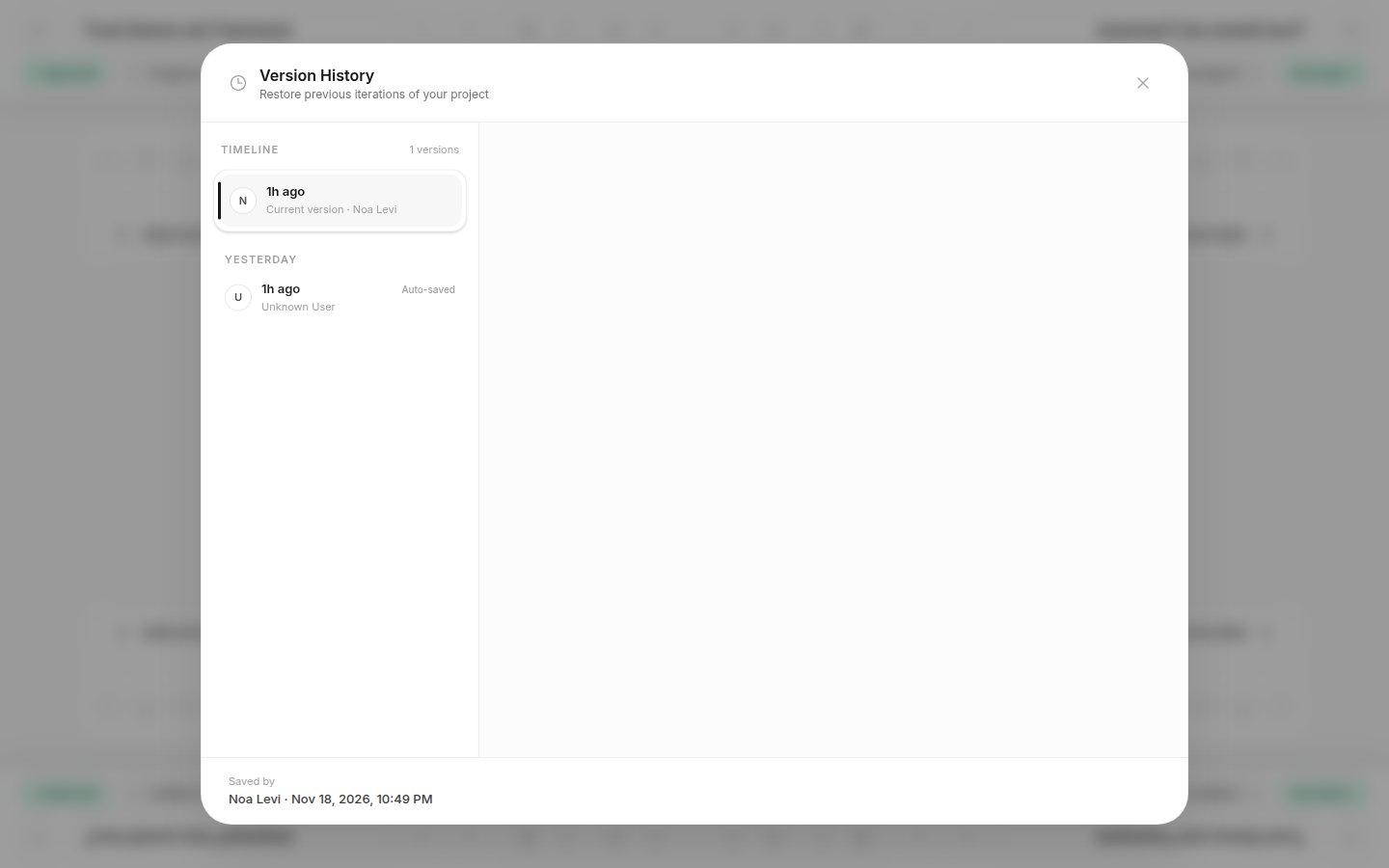
- Current versionThis is the active plan you will return to when you close history.
- Earlier saveSelect a saved version to inspect it before deciding whether to restore it.
- 1To print, select Print and wait for the layout. Use your device’s dialog to select a printer or Save as PDF.
- 2To investigate a change, check the current save status, then open Version history. Select a version to preview it.
- 3Compare the old and current content before restoring. If you only need an editable offline copy, use Share → Export instead.
Where to look
Top-right editor actions
Version history
Editor action row or More menu