Working together
Push template updates and lock assignment content
Safely send template changes to active assignment copies and decide which parts recipients may edit.
At a glance
- 1Edit the assignment template as the source of truth. Existing recipient copies are not changed just because you edit the template.
- 2After recipients have been assigned, select Push Updates. Campfire first shows a preview of the linked assignments and the fields or parts that will be replaced, may not update, become editable, be added, or be updated.
- 3Read that preview before confirming. It is the moment to stop if the change would affect more copies than intended or overwrite a part that should remain locally customized.
- 4Confirm Update linked assignments to save the template and send the approved update to its active copies. Wait for the update to finish before making another assignment action.
- 5Use Lock Peulot from the action row to lock the outer structure of every section, such as its title, duration, ordering, or removal. Use Lock Blocks to lock the detailed blocks inside every section, including their content and materials.
- 6Locks set the editing boundary for recipients; they do not delete content and they are not a substitute for checking the Push Updates preview. Only lock a level when recipients should no longer adapt it.
Step-by-step walkthrough
1.Update distributed work without guessing what will change
Editing a template alone does not change the copies people already received. Push Updates is the explicit delivery step.
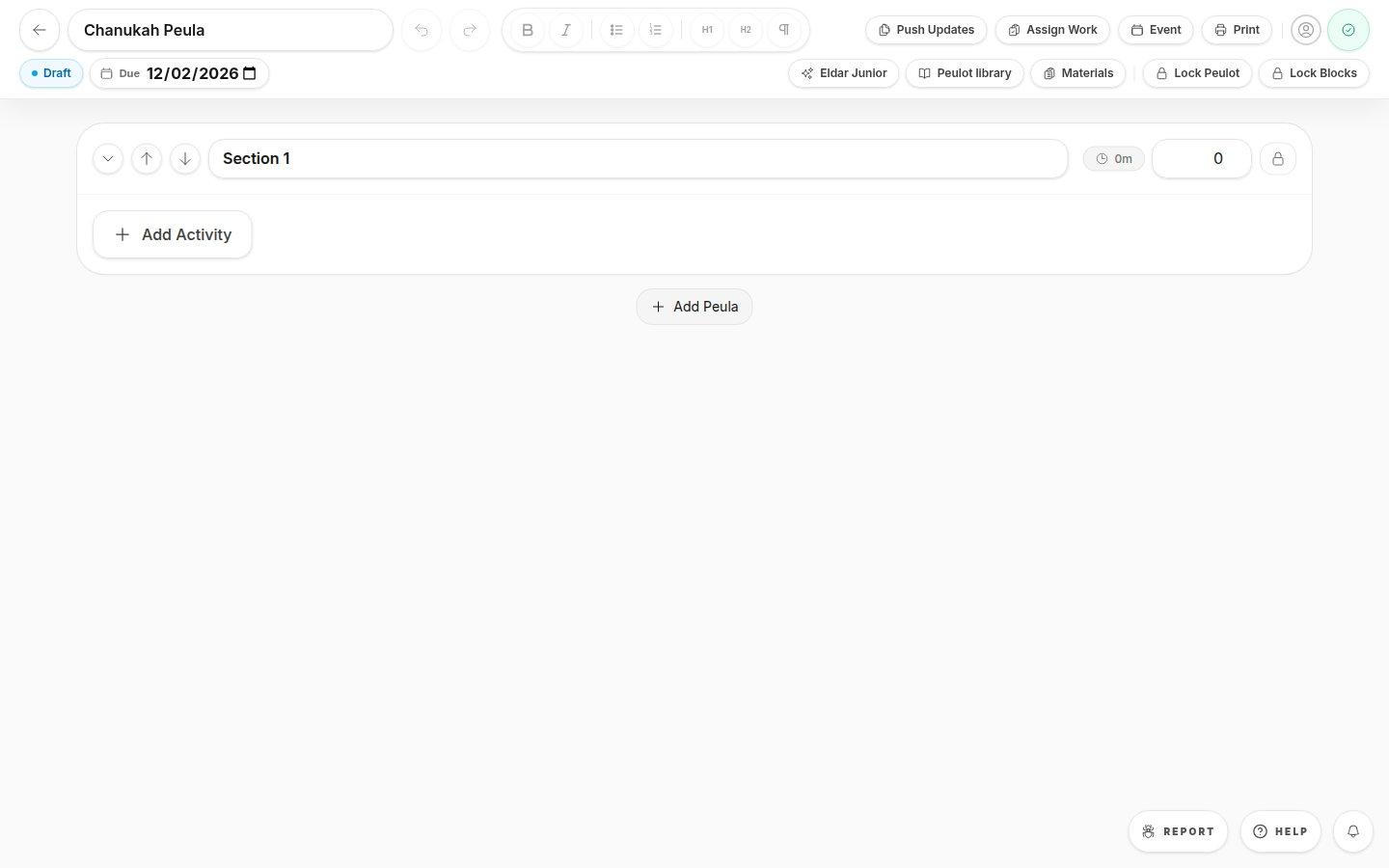
- Push UpdatesPreviews how linked copies would change before you send the update.
- Lock Peulot and Lock BlocksUse the first control to protect section structure and the second to protect block contents.
- 1Edit the template and save it. After recipients are assigned, choose Push Updates.
- 2Read the preview for every affected copy. Stop if a locally customized section would be replaced; otherwise confirm Update linked assignments.
- 3Use Lock Peulot to protect section structure and Lock Blocks to protect the content inside sections. Leave anything recipients should adapt unlocked.
If you cannot do this
- Push Updates appears only after the assignment has active recipients.
- Lock actions require permission to edit the assignment structure.
Where to look
Push Updates
Top-right assignment actions
Lock Peulot
Assignment action row or More menu
Lock Blocks
Assignment action row or More menu