Planning a Peula
Use and contribute to the Peula Library
Browse reusable Peulot, copy useful content into the plan you are editing, and publish the parts worth sharing.
At a glance
- 1Open Library from the editor action row. Start with a shevet, choose a grade when needed, then search or browse the published Peulot.
- 2Open a library item to preview it before using it. Choose the target Peula when prompted, then copy the content into the plan; review the copied result and adapt it to your group.
- 3To contribute your own work, choose Share Peulot from the action row. Select the sections and blocks that should be public to others—do not assume the whole current Peula is shared.
- 4Give the library item a clear title and description, choose its target grade, visibility, and useful tags, then publish it to the library.
- 5Publishing to the library creates a reusable shared item. It does not grant people edit access to your live Peula; use the regular Share action when collaborators need access to this exact plan.
Step-by-step walkthrough
1.Reuse a library item or publish selected content
Browsing the library, publishing reusable blocks, and sharing access to a live plan are three different actions.
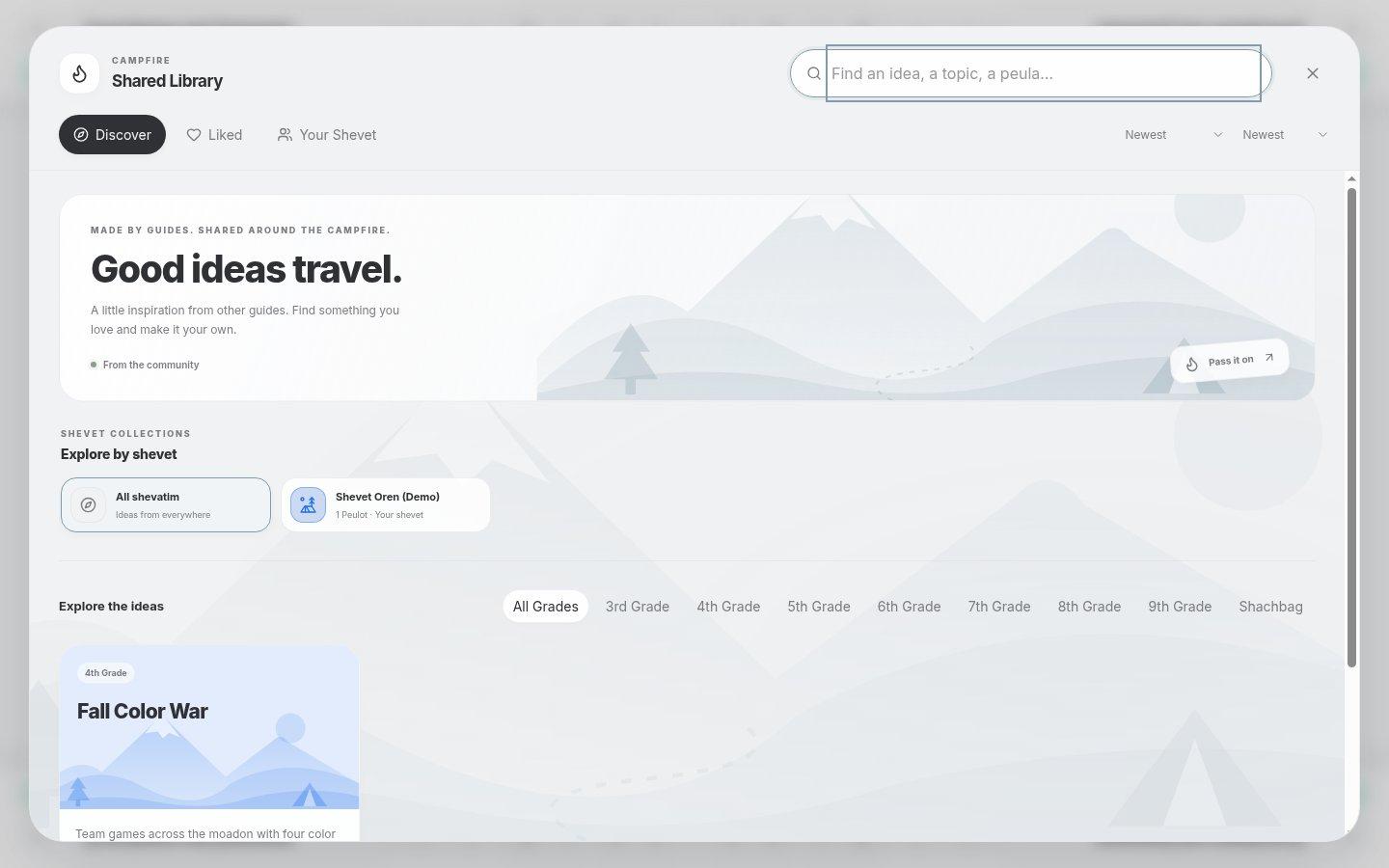
- Explore by shevetBrowse shared plans by the shevet that contributed them.
- Grade filtersNarrow the results by age group before previewing a plan.
- 1Open Library and narrow by shevet or grade. Preview an item and choose the destination Peula before copying its content.
- 2Read and adapt the copied blocks for your own chanichim, time and equipment.
- 3To publish your own content, use Share Peulot and select only the intended blocks. Check the description, tags, grade and visibility before publishing.
If you cannot do this
- Library and publishing options can be limited by the Peula type, assignment connection, or your permissions.
- Assignment templates can copy from the library, but cannot publish their own content to it.
Where to look
Library
Editor action row or More menu
Share Peulot
Share group in the editor actions