Working together
Assign work from an assignment template
Turn the template into working copies for the right grades or people, with a calendar event and the right collaboration mode.
At a glance
- 1Finish the template first: it is the starting point that Campfire copies for the people receiving the assignment.
- 2Set a Due date in the action row when the work has a deadline. The due date helps recipients understand when their copy is expected; it does not replace the calendar event.
- 3Select Assign Work. An assignment needs a calendar event before it can be sent. If no event is attached, Campfire opens the Event dialog first; attach an existing event, then continue to assignment.
- 4Choose Tzevet to assign the work to one or more grades, or People to assign it to specific members. In People, you can narrow the list by role or grade and then search by name, email, or grade.
- 5Choose Individual when each recipient should receive their own copy to complete, or Shared when selected recipients should work in the same copy together. Confirm only after checking the selected recipients and mode.
- 6If changing the delivery would remove recipients or switch between individual and shared workspaces, read the impact confirmation. Existing work is preserved, but people who are removed no longer have an active assigned copy.
Step-by-step walkthrough
1.Deliver the template to the right people
A template is the starting plan; delivery decides who gets it and whether they work together or separately.
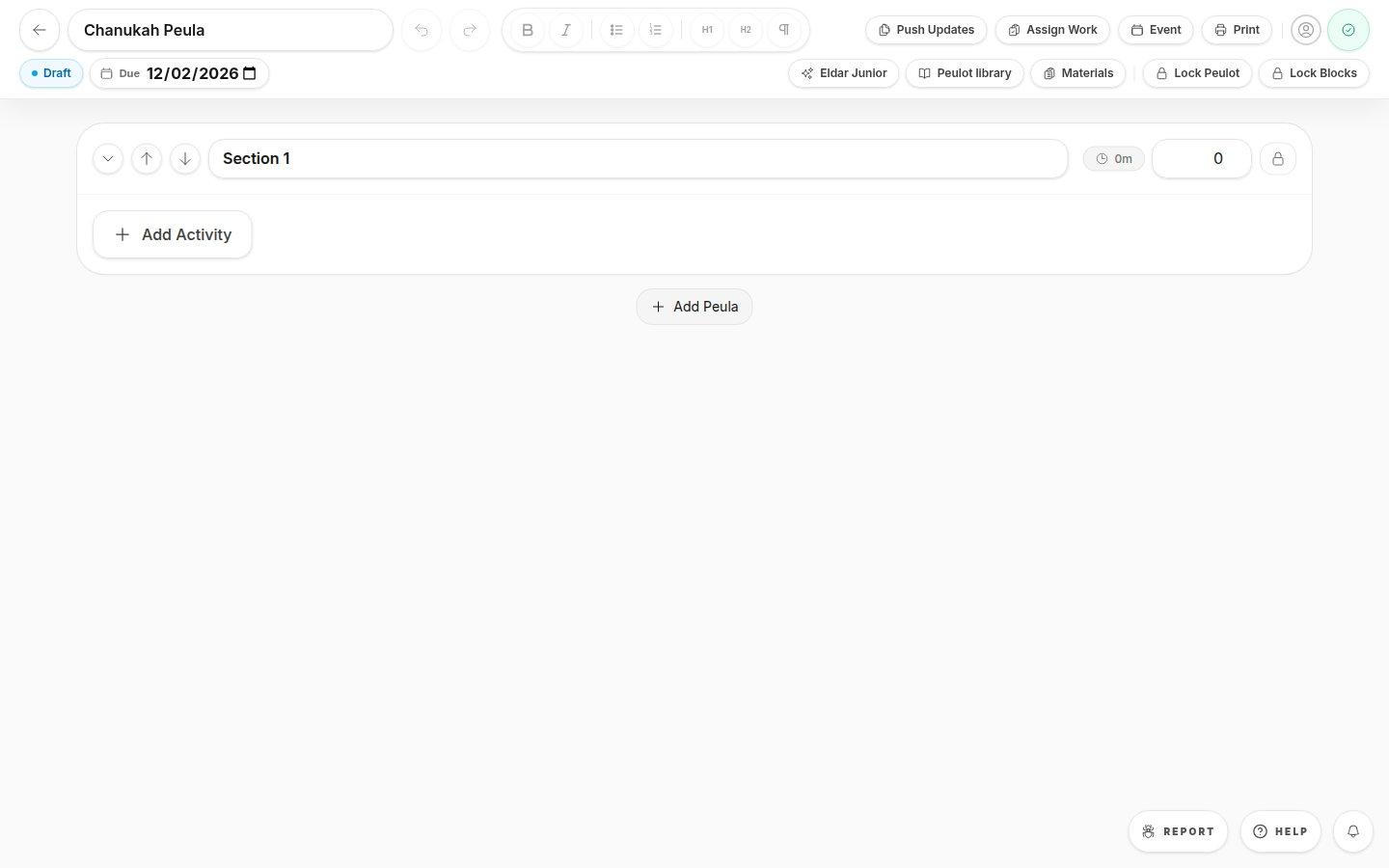
- Assign WorkOpens the recipient picker or asks for a calendar event first.
- 1Finish the template and set a due date for the work. Attach the calendar event for the activity itself; the two dates serve different purposes.
- 2Choose Assign Work. Use Tzevet for entire groups or People for named members. Check the selection before delivery.
- 3Choose Individual for separate copies or Shared for one collaborative copy. Read the impact notice before changing recipients or mode on existing work.
If you cannot do this
- Only people with assignment permission can attach the event or assign work.
Where to look
Due
Assignment action row
Assign Work
Top-right assignment actions
Event
Top-right assignment actions