Working together
Attach an event, share a Peula, or export it
Connect the plan to its calendar event, control who can access it, and make an export when you need an offline copy.
At a glance
- 1Select Event in the editor's top-right actions to see the currently attached event. Choose another calendar event to replace it, remove it when appropriate, or create an event directly from this dialog when your role allows it.
- 2Use Share in that same area to control access. In the Access view, add or remove individual people, including people in other shevatim; choose a destination shevet for each cross-shevet recipient. If the Peula is connected to a tzevet, use the tzevet section to manage that connection.
- 3A Peula connected to My Tzevet appears prominently for that tzevet. Later, shevet members who can see the tzevet and are not hidden from it may find and view the Peula in the shevet archive. Viewing it alone does not grant editing rights; those follow role and sharing permissions.
- 4Sharing with People keeps the Peula yours and limits access to the individuals you choose rather than opening it to the tzevet. If you do not share it yet, it stays private to you.
- 5Copy link gives you the direct editor URL. The share icon can open your device's sharing sheet when it is available.
- 6Switch Share to the Export view to download an offline copy. Choose the format you need, such as a Word document or plain text, then wait for the download to finish.
- 7Sharing access is different from publishing to the Peula Library: access lets selected people work on this exact Peula; publishing makes selected content discoverable as a reusable library item.
Step-by-step walkthrough
1.Choose the action that matches your goal
An event sets the schedule. Share gives access to this live Peula or exports a copy. Publishing to the library is a separate workflow.
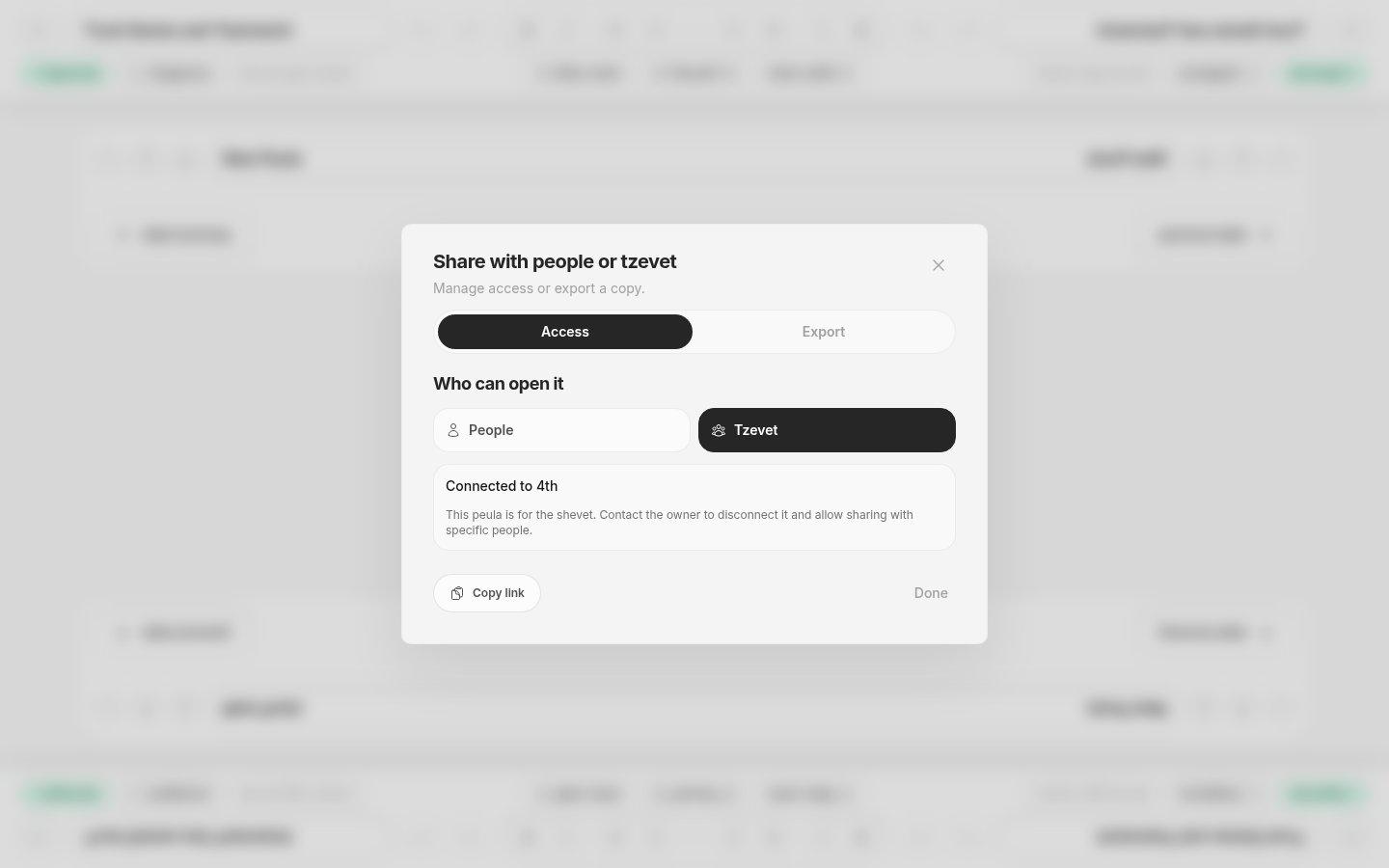
- Access and ExportUse Access to change who can open this Peula or Export to download a separate file.
- People or TzevetChoose named collaborators or review which tzevet the Peula is connected to.
- Copy linkGives you the direct link without changing who has access.
- 1Open Event and check the current link. Choose a different event, create one if allowed, or remove the link only if the Peula no longer needs it.
- 2In Share → Access, choose a tzevet or add specific people. For someone outside the shevet, confirm the destination shevet and save.
- 3To send an offline copy rather than give access, switch Share to Export and choose the file format.
If you cannot do this
- You need edit permission to change an event or access settings.
- Only events available to your shevet appear in the event picker.
Where to look
Event
Top-right editor actions
Share
Top-right editor actions