Equipment and materials
Request Tzuid for a Peula
Send the equipment request for an upcoming Peula and keep its list accurate before the activity.
At a glance
- 1On your shevet dashboard, select My Tzuid in the action bar. It opens directly without an action group.
- 2Choose the upcoming Peula the request is for.
- 3Check the equipment copied from the Peula, then change quantities, remove lines, or add an item if needed.
- 4Select Send. If a request already exists, make a change first and select Update.
- 5Reopen the request later to see whether each item is approved, being brought by the tzevet, bought, or unavailable.
Step-by-step walkthrough
1.Start from My Tzuid and confirm the activity
My Tzuid is where you send or update a request for an upcoming Peula. The Machsan tab is for monitoring equipment across Peulot.
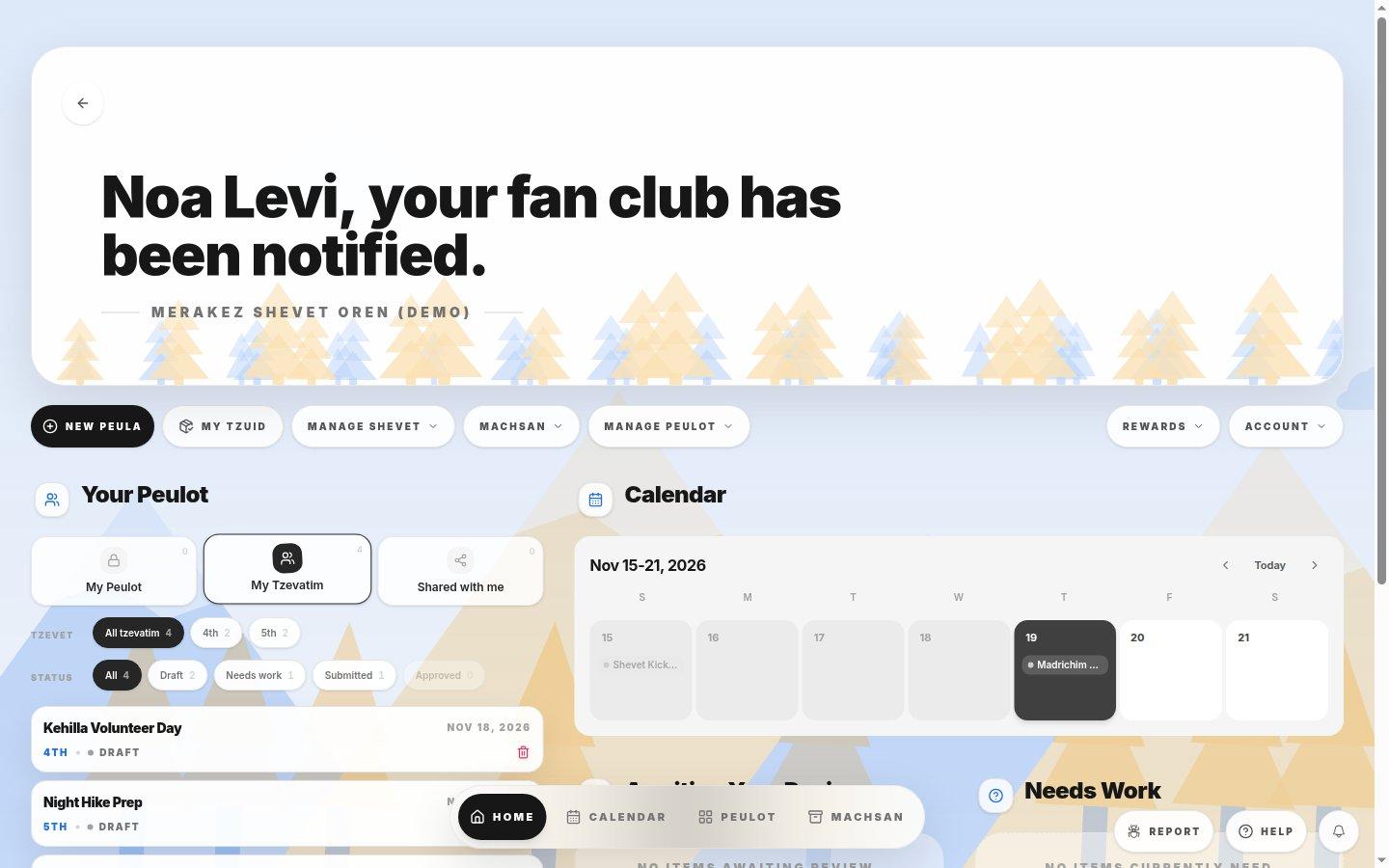
- My TzuidOpen the request directly from the action row. It is not in the Machsan menu.
- Check the plan and dateConfirm which upcoming plan the request is for, especially if two have similar titles.
- 1Select My Tzuid and choose the upcoming Peula. Review the materials brought over from the plan.
- 2Correct quantities and add or remove lines as needed. Select Send for a new request or Update after editing an existing one.
- 3Reopen the request to check the status of each line. Sending does not mean equipment has been approved.
If you cannot do this
- Only upcoming Peulot that you can request equipment for appear in the picker.
- Send stays unavailable until you choose a Peula with at least one equipment line.
Where to look
My Tzuid
the dashboard action bar