Equipment and materials
Use the Tzuid Board
The Tzuid Board lives inside the Machsan tab. It turns upcoming Peulot into one clear equipment checklist for each week.
At a glance
- 1In the dashboard navigation, open the Machsan tab. Then choose the Tzuid tab inside that page. This is separate from the Request Tzuid action button in the top action row.
- 2Start with the week picker. It opens on this week; use the arrows to check a future week. The board only shows Peulot scheduled in the selected week.
- 3Choose By Peula when you are packing or coordinating one activity. Each card then gathers every item that Peula needs in one place.
- 4Choose By Item when you are checking inventory. Each card then groups demand for the same item across all scheduled Peulot, so shortages are easier to spot.
- 5Use the grade filter to include only the tzevatim you are responsible for. You can select more than one grade, then clear the filter to return to the full board.
- 6Use All for the complete picture, Red for equipment that still needs a decision, and Green for equipment already covered. On each row, the need and short amounts show what remains.
- 7Use a row's actions to mark equipment as brought by the tzevet, purchase it, say it cannot be obtained, or—when you have permission—approve it from the Machsan. The separate status guide explains those actions in detail.
- 8Below the board, use Past Peulot to follow up on reusable equipment after an activity and record whether it came back or is missing.
Step-by-step walkthrough
1.Pick the view that answers your equipment question
The board follows the selected week. By Peula is for packing an activity; By Item is for comparing demand across activities.
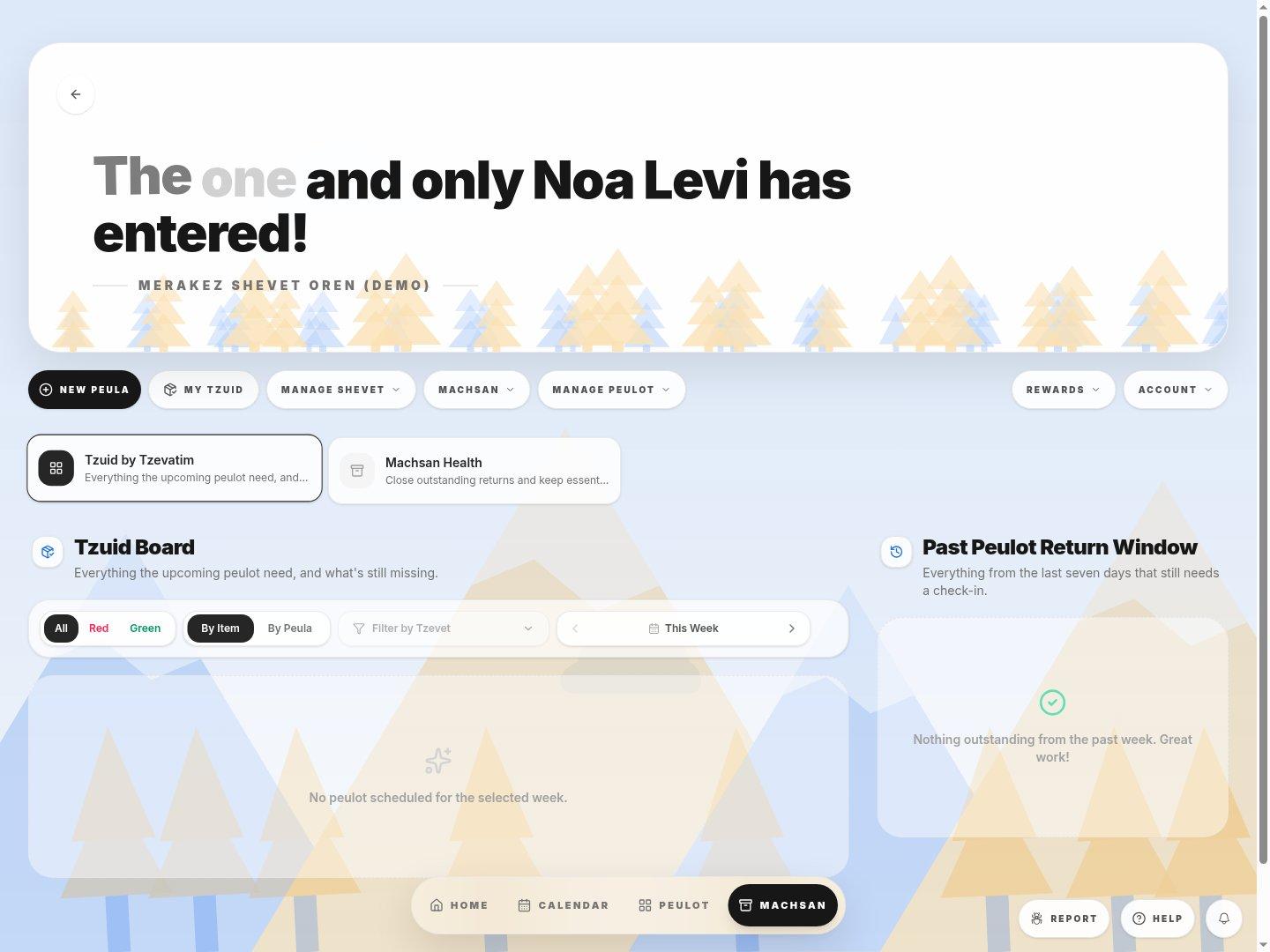
- Week, grouping and statusChoose the week, then By Peula or By Item. Red highlights unresolved equipment; Green shows covered rows.
- Past PeulotUse this separate area for reusable equipment that should already have come back.
- 1Open the Machsan dashboard tab, then Tzuid by Tzevatim. Set the week that contains the activity.
- 2For packing, select By Peula and find the activity. For stock planning, choose By Item and check how much is needed across Peulot.
- 3Use the tzevet filter for your teams. Reset it and select All when checking for other requests for the same equipment.
If you cannot do this
- The Request Tzuid action button creates or updates a request for one Peula; it does not open the board.
- An empty board can mean there are no upcoming Peulot in that week, every need is covered, or the current filters hide the results.
Where to look
Tzuid
inside the Machsan tab