Planning a Peula
Navigate Your Peulot
Find a Peula by source, tzevet, tafkid, or status, then open it from the Home tab.
At a glance
- 1On the Home tab, find the Your Peulot section.
- 2Choose My Peulot, My Tzevet or My Tzevatim, or Shared with me to change which plans are shown. A Peula shared from another shevet appears under Shared with me and shows its source shevet on the card.
- 3Use the status filter to narrow the list to drafts, plans that need work, submitted plans, or approved plans.
- 4When available, use the tzevet or tafkid filter for a more specific list.
- 5Select a Peula card to open it. Use the page controls when there are more results.
Step-by-step walkthrough
1.Find the right plan, not just the right title
Your Peulot is the Home shortlist. Choose a view first and filters second; neither changes a plan or its access.
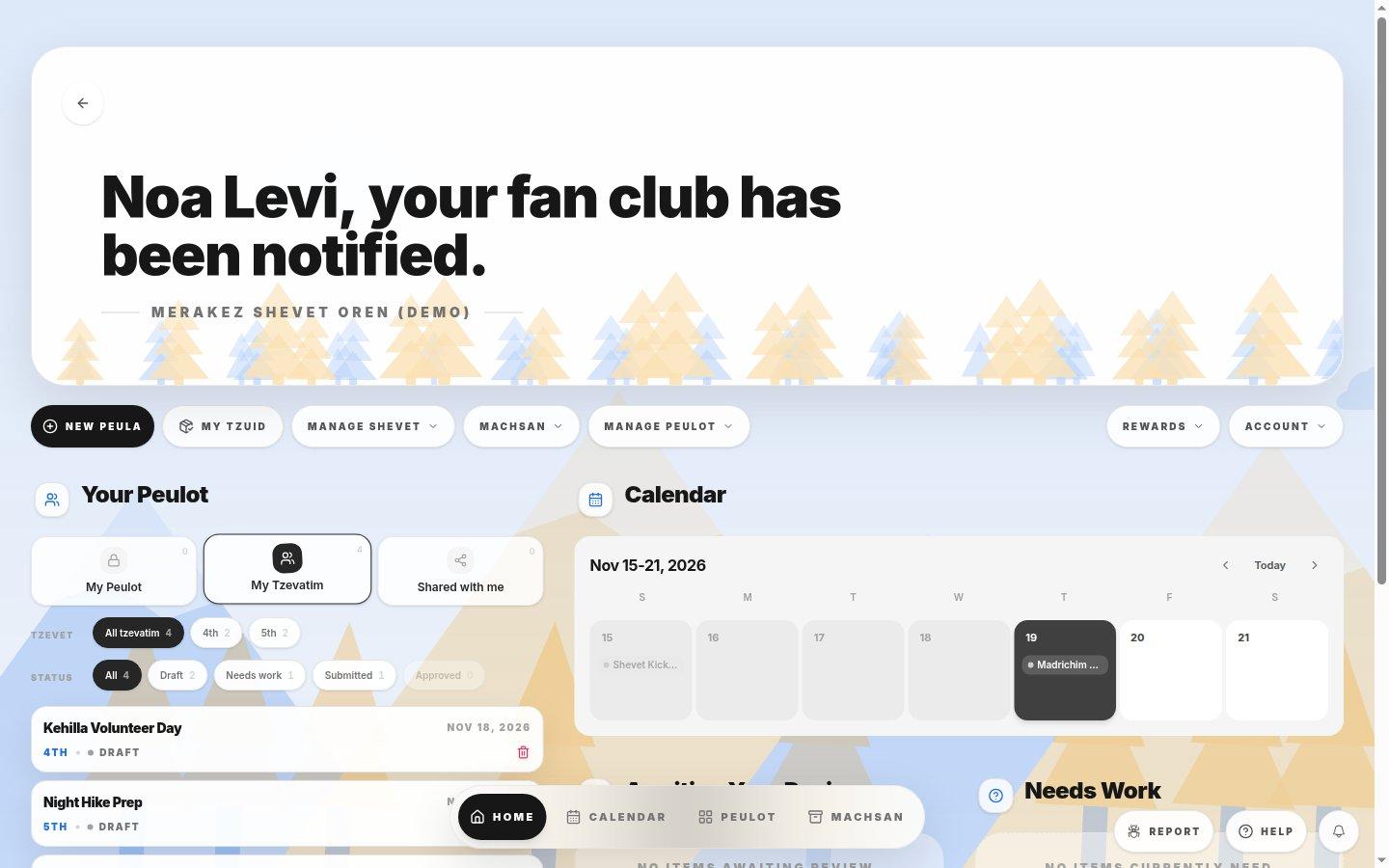
- Who the plan belongs toMy Peulot lists plans you own. Shared with me includes plans shared from another shevet.
- Narrow the resultsUse a tzevet filter and one status to isolate the work you need.
- Verify the cardLook under the title for the date, tzevet, and status before opening.
- 1For a draft you own, choose My Peulot and set Status to Draft.
- 2For a teammate’s plan, switch to My Tzevatim and select the relevant tzevet. For an invitation from another shevet, choose Shared with me.
- 3If nothing appears, reset the filters. Look in the Peulot library for an older event.
If you cannot do this
- An empty list means there are no Peulot matching the selected source and filters.
- Tzevet and tafkid filters only appear when they apply to the selected list.
Where to look
Your Peulot
the left side of the Home tab