Working together
Connect a received Peula to your shevet
A Peula shared from another shevet can be edited immediately, but its event and Tzuid need local setup.
At a glance
- 1Enter the shevet where the Peula was shared with you. Open Your Peulot, choose Shared with me, and select the card marked with its source shevet.
- 2In the editor, choose Set up, then Event. Connect an existing event in your shevet, create a new one, or use Create and connect this event to copy the source shevet's event when that option appears.
- 3After your shevet's event is connected, return to Set up and choose Tzuid. Review the materials copied from the Peula, adjust the request for your shevet, and send the first request.
- 4The first Tzuid request is required for a received Peula even if your Machsan normally uses automatic requests. After that first request, your shevet's usual Machsan settings apply.
- 5The Set up indicator disappears once both the local event and first Tzuid request are connected. The source shevet's event and equipment workflow remain separate.
Step-by-step walkthrough
1.Start in the destination shevet
A shared Peula keeps its source shevet. As a recipient, you attach your own calendar event and create your own first Tzuid request.
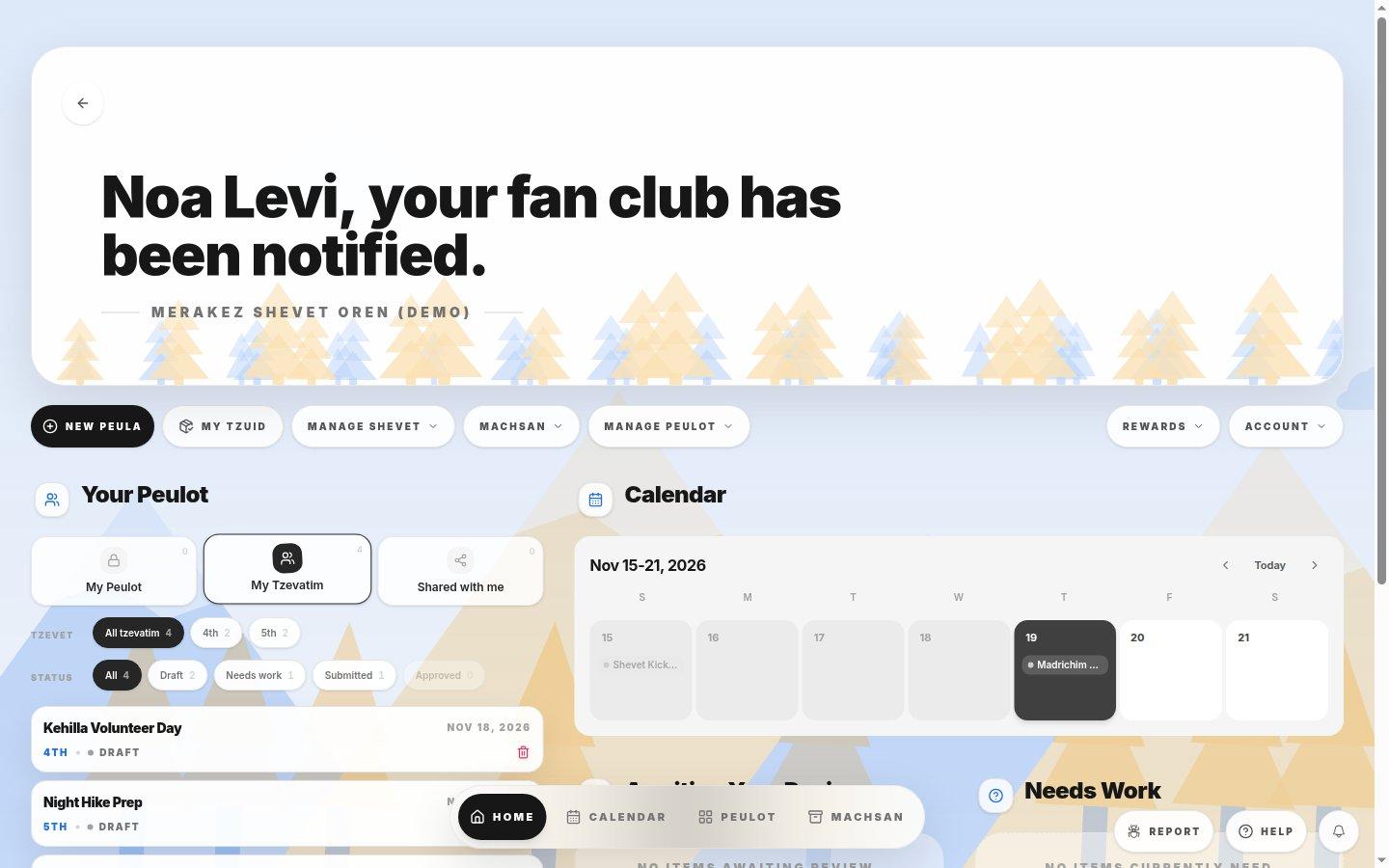
- Shared with meOpen the plan under this view in the destination shevet. Check the source shevet on the card.
- 1Enter the destination shevet and open the received card under Shared with me.
- 2Choose Set up → Event. Link an existing local event, create a new one, or copy the source event if that option is offered.
- 3Return to Set up → Tzuid and send the first request after checking local equipment. This first request is needed even in automatic mode.
- 4Check that Set up disappears after both steps. Nothing you did changes the source shevet’s event or request.
If you cannot do this
- You cannot send the local Tzuid request before connecting an event in your shevet.
- You need access to edit the Peula and permission to use the selected local event.
Where to look
Shared with me
Your Peulot on the destination shevet's Home tab
Set up
the editor's top actions