Equipment and materials
Monitor Machsan Health
Check stock pressure, equipment still out, and missing items from one view.
At a glance
- 1Open the Machsan tab and choose Health.
- 2Use the summary cards to see equipment in use, missing items, and items needed for upcoming Peulot.
- 3Review Low stock to see items at or below their threshold.
- 4Search Missing items to find equipment that has not come back, then record whether it was returned or is missing.
Step-by-step walkthrough
1.Follow up on stock and returns
Health is a follow-up view. Use it to check equipment in use, missing or low, rather than to edit the materials list of a Peula.
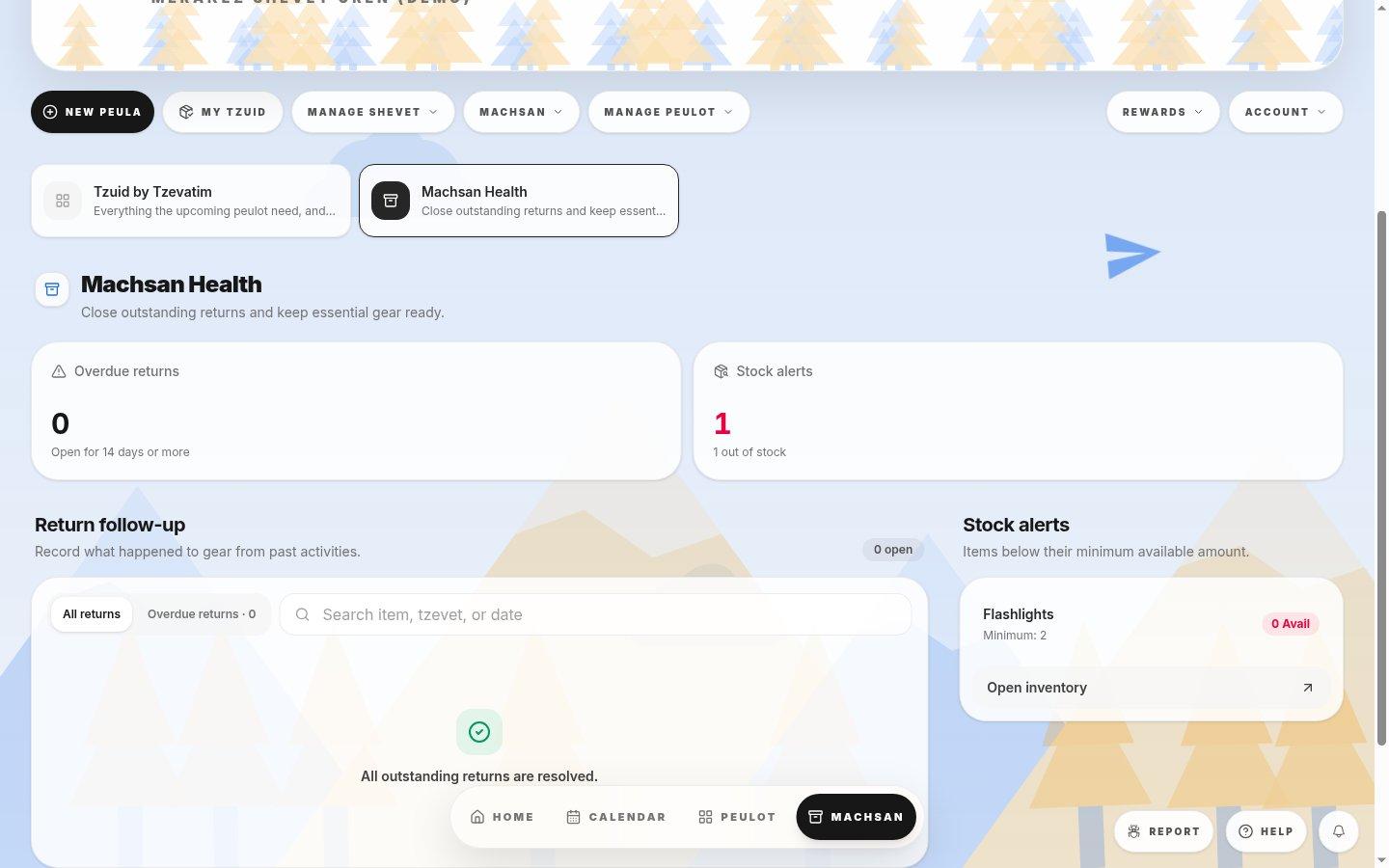
- Machsan HealthSwitch here from the weekly Tzuid Board to review stock and returns.
- Health summaryCompare low stock and outstanding reusable equipment. They represent different follow-up work.
- 1Open Machsan, then Health. Review the counts to see where follow-up is needed.
- 2In Low stock, compare the current quantity to the threshold and count the physical stock before correcting quantity.
- 3Search the missing items list for the relevant equipment and record returned or missing once its status is confirmed.
If you cannot do this
- A clear Low stock or Missing items panel means there is nothing currently needing attention in that category.
- Return and missing actions appear only for equipment that is still expected back.
Where to look
Health
the Machsan tab