Equipment and materials
Navigate the Machsan Inventory
Use the dedicated Machsan page to find equipment, understand availability, and focus the list on the items you need.
At a glance
- 1Open Machsan from the shevet workspace. This is the inventory page, separate from the dashboard's Machsan planning tab.
- 2Use search to find an item by name.
- 3Filter by reusable or consumable, condition, and category to narrow a large inventory without changing any data.
- 4Read an item's quantity, in-use amount, and available amount together before deciding whether it can cover a Peula.
- 5Open or expand an item row when you need its full details, history, or edit controls.
Step-by-step walkthrough
1.Get to know the Machsan page
The Machsan page is the shevet's equipment inventory. Each card is one item with its stock level and the point at which it counts as running low.
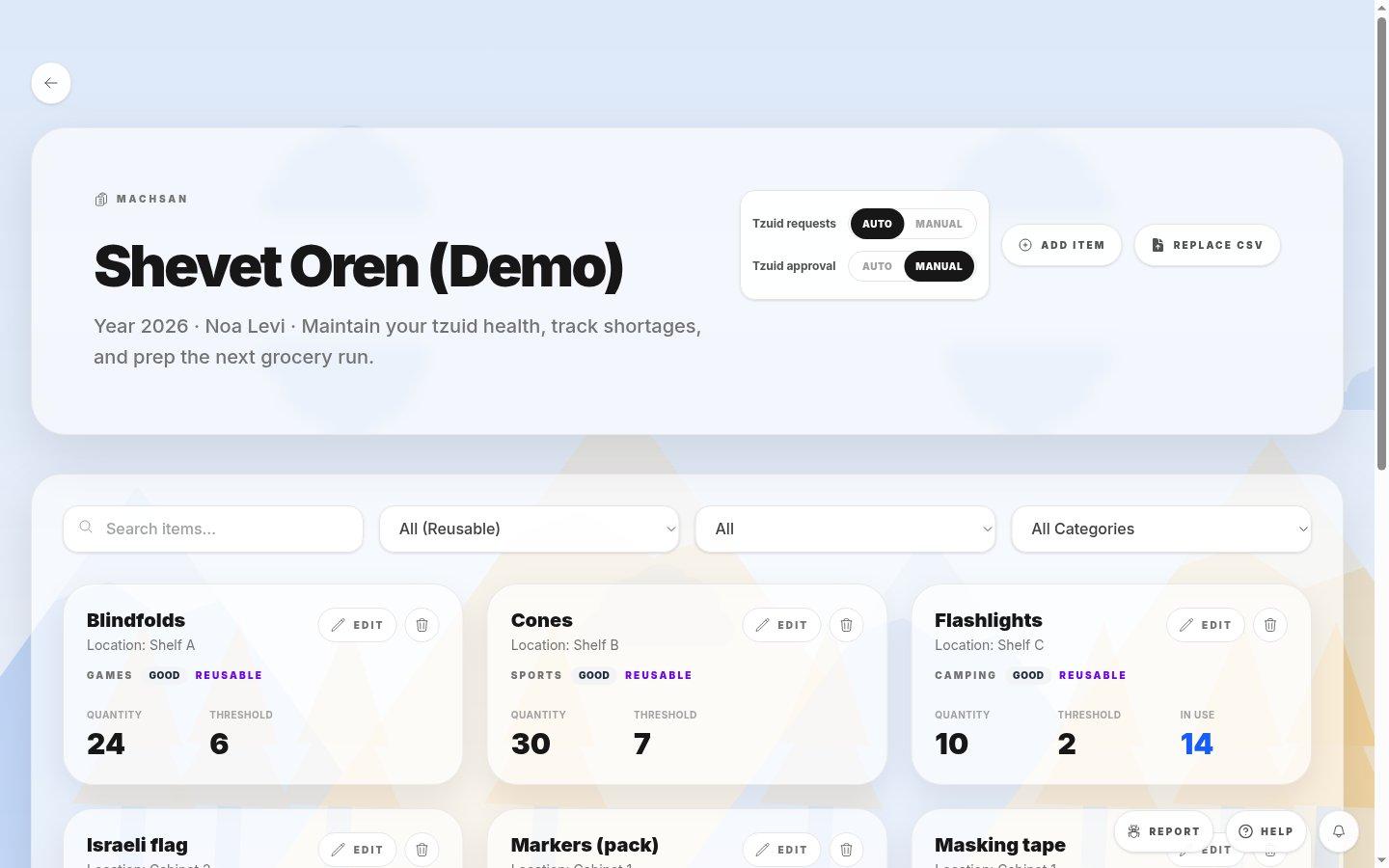
- Tzuid request and approval modesTzuid requests sets whether Peulot request equipment automatically or manually. Tzuid approval sets whether requests are approved automatically or wait for a manager.
- Add item and Replace CSVAdd item creates one inventory item. Replace CSV replaces the whole inventory from a spreadsheet, so use it with care.
- Search itemsFinds items by name.
- FiltersShow reusable or consumable items, a condition, or one category. Filters never change the inventory itself.
- Item cardShows the item's location, category, condition and whether it is reusable. Quantity is what you own; Threshold is the level that triggers a low-stock warning.
- Edit and deleteEdit changes the item's details or quantity; the trash button deletes it. Only people with inventory permission see these.
2.Find equipment for a Peula
- 1Open Machsan from the shevet workspace. This page is separate from the dashboard's Machsan planning tab.
- 2Type the item name in Search, or choose a category to browse similar items.
- 3Compare Quantity with Threshold. When Quantity is at or below Threshold, plan a restock before relying on the item.
- 4Check Location so you know where to collect it.
- 5Select Edit when you need to correct the quantity after a count.
Tip: If the list looks empty, reset every filter to All before assuming an item is missing.
If you cannot do this
- A filter can make the table look empty even when inventory exists; clear filters before assuming an item is missing.
- People without inventory-management permission can view stock but cannot edit or delete it.
Where to look
Inventory
the dedicated Machsan page