Equipment and materials
Import Machsan Inventory from CSV
Use a CSV to add many inventory items efficiently, and use replacement only when you intend to replace the current list.
At a glance
- 1Choose Upload CSV on the Machsan page.
- 2Open the format instructions or download the example file before preparing your spreadsheet.
- 3Use the required column headers exactly: What, How many, Reusable, Category, What condition, and Threshold.
- 4Save the spreadsheet as a CSV, select it in the upload dialog, and submit it.
- 5Leave Replace existing inventory off for a normal import. Turn it on only after checking that the file contains the full inventory you want to keep.
- 6Wait for the refresh to finish, then search for a few imported items to confirm names and quantities.
Step-by-step walkthrough
1.Prepare and verify a CSV before uploading
The CSV button is in the inventory header. On a populated Machsan it may be labeled Replace CSV; read the dialog before choosing whether to replace the existing list.
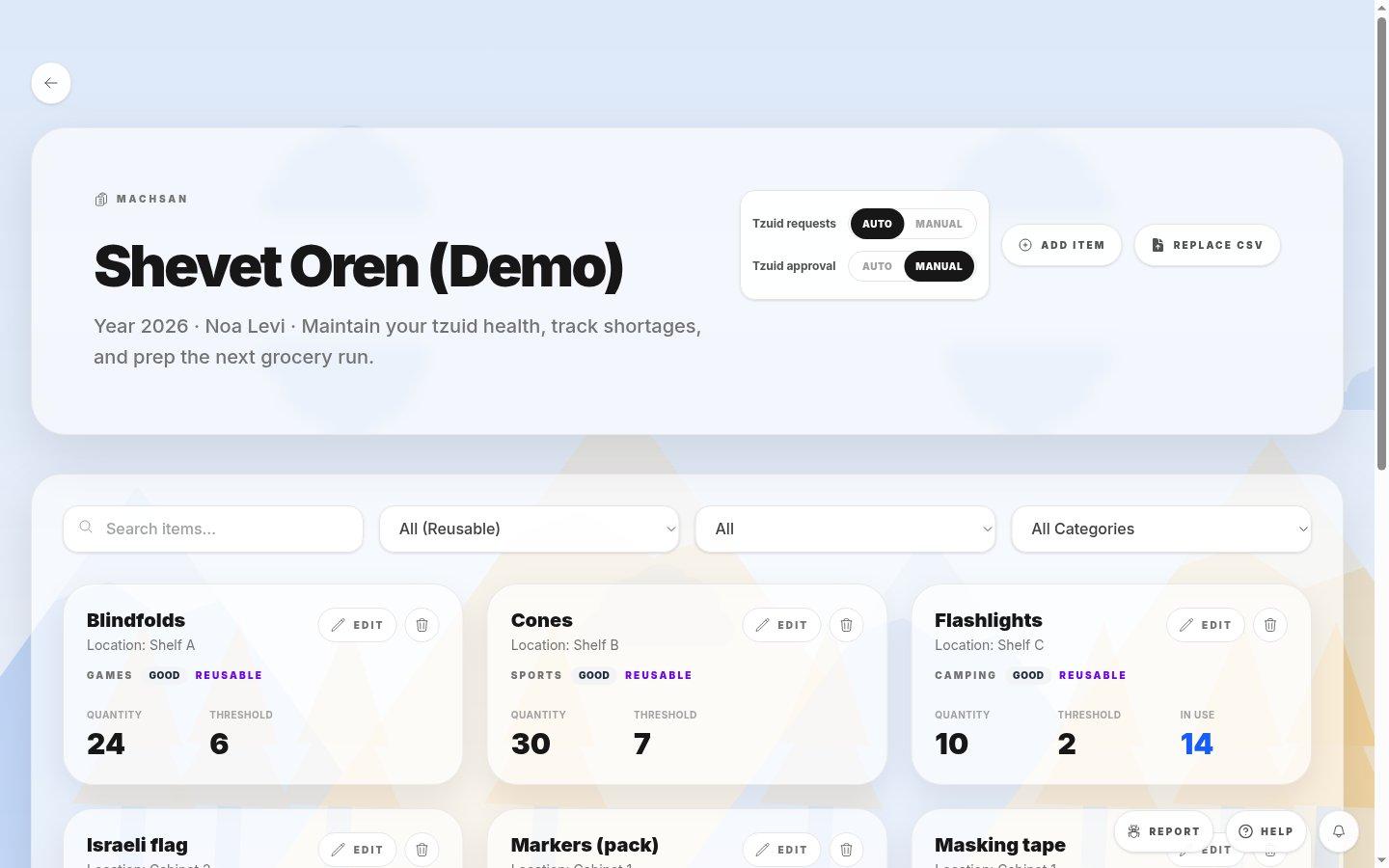
- CSV actionOpen the format instructions and example file before choosing your spreadsheet.
- Verify the importAfter importing, search for sample rows by their exact item names.
- 1Match the example headers exactly: What, How many, Reusable, Category, What condition, Threshold.
- 2Save the spreadsheet in CSV format, then select it in the upload dialog. Leave replacement off for a normal import.
- 3If you intend to replace the inventory, verify the file includes every item you want to keep before you confirm.
- 4After the list refreshes, compare a few item quantities and thresholds against the spreadsheet.
If you cannot do this
- CSV upload requires inventory-management permission.
- Replacement is intentionally shown only when inventory already exists because it can replace the current list.
Where to look
Upload CSV
the Machsan page header