Equipment and materials
Check and request Tzuid for a Peula
Review everything the Peula needs, compare it with the full Machsan, and send a request for the plan.
At a glance
- 1Open Materials from the editor action row to see the Peula's complete materials list, not just the items visible in one block.
- 2The Requested tab shows what this Peula needs and whether the matching Machsan stock is enough, low, out, or not linked to an inventory item.
- 3Open the Machsan tab in the same window to search the entire shevet inventory by item or category. This is for checking availability; it does not add an item to the plan by itself.
- 4Use Request Tzuid in the editor actions when the list is ready. Review the request and submit it so the Machsan workflow can track it for this Peula.
- 5A request is not a stock deduction or an approval. Follow its status in the Tzuid board, and update the Peula's material list if the actual need changes.
Step-by-step walkthrough
1.Check materials before sending the request
Materials shows the full list from the Peula’s blocks. Request Tzuid sends a list to the equipment workflow; opening Materials alone does not send anything.
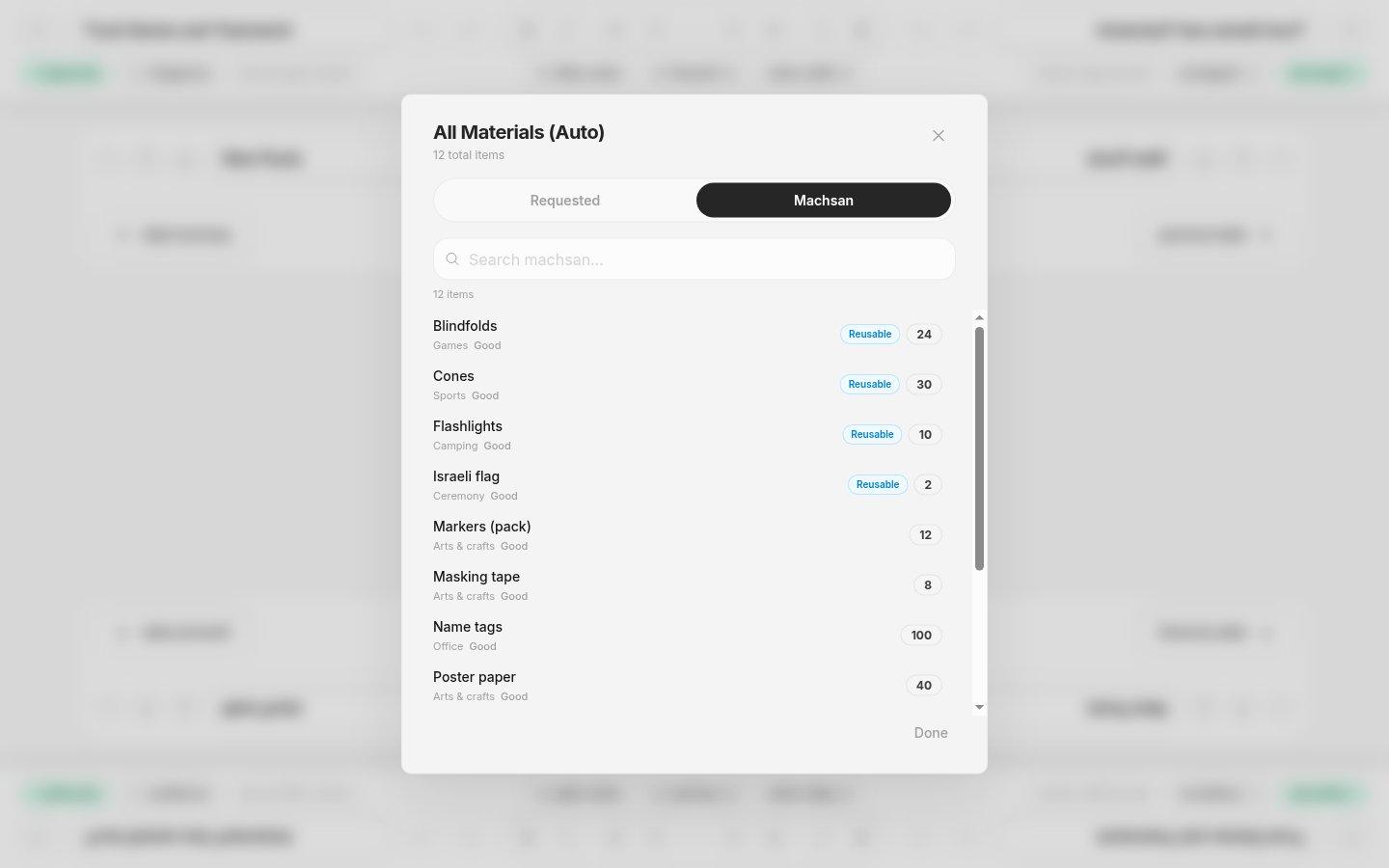
- Requested and MachsanRequested shows what the Peula needs. Machsan shows what the shevet keeps in inventory.
- Inventory searchLook up the item before you send a request; searching does not add it to the plan.
- 1Open Materials and read Requested. Check what is low, out of stock, or not linked to an inventory item.
- 2Switch to Machsan in the materials window to check inventory. Looking up an item there does not add it to the plan.
- 3Adjust the plan or request quantities as needed. Open Request Tzuid, review the lines, and send through the available workflow.
Where to look
Materials
Editor action row or More menu
Request Tzuid
Editor action row or More menu