Calendar and attendance
Create an Attendance Date
Attendance dates come from calendar events. Create the event first, then turn on attendance tracking in that event.
At a glance
- 1Open the Calendar tab and select the date of the activity.
- 2Create a new event, or open the existing event that should have attendance.
- 3In the event form, open the Attendance section and enable attendance tracking.
- 4In Attendance, choose all or specific tzevatim whose chanichim roster should be counted. This does not count the madrichim leading those tzevatim.
- 5To track shachbag members, create a shachbag tzevet and add their names to its chanichim roster. Set the event Audience separately to choose which Campfire users see it on their calendars, then save.
- 6The saved calendar event creates the attendance date. Open Attendance, choose a tzevet, and select that date to record who attended.
Step-by-step walkthrough
1.Turn a calendar event into an attendance date
Attendance does not start from a blank date on the roster. It starts from a calendar event with attendance enabled for the roster you want to count.
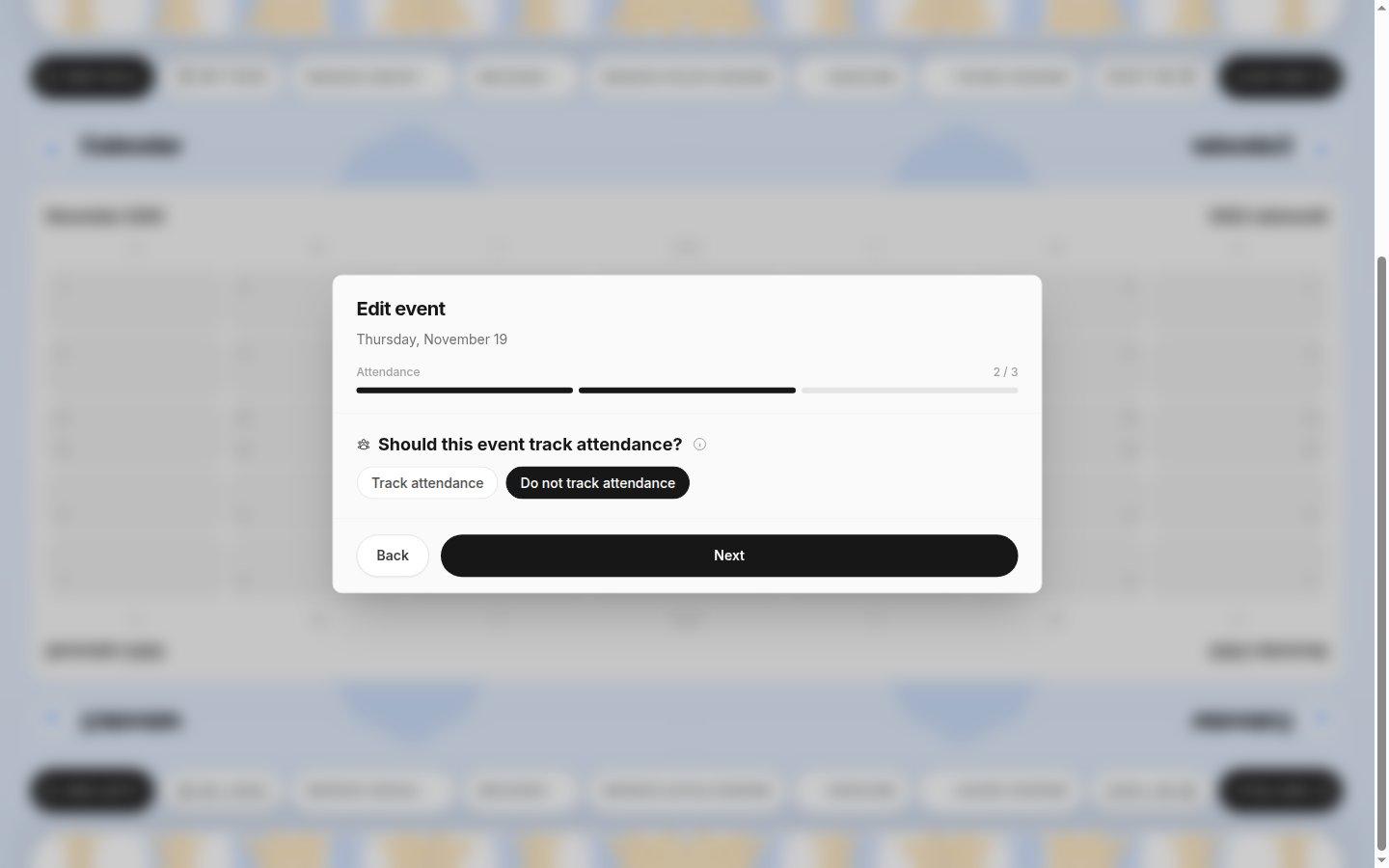
- Roster scopeChoose all tzevatim or only specific tzevatim whose chanichim should be counted.
- Continue to audienceAudience controls who sees the event; it does not replace these roster settings.
- 1Create or edit the calendar event. Confirm the name and date you want to see on the attendance page.
- 2Open Attendance, enable tracking, and select the participating tzevatim before continuing.
- 3After saving, open Attendance and the selected tzevet. Look for the matching event pill above the roster.
Tip: To count shachbag, use a shachbag tzevet whose members are entered on its chanichim roster.
If you cannot do this
- You need permission to manage attendance dates before the Attendance section appears in an event.
- Do not try to create the attendance date from the attendance-recording screen; create or edit its calendar event instead.
Where to look
Attendance
inside a calendar event form