Calendar and attendance
Add or edit a calendar event
Create an event for a date, or open an existing event to update its details, attendance, and audience.
At a glance
- 1Open Calendar and select the date you need.
- 2Choose Add event to create one, or select an existing event to edit it.
- 3Enter the event title and details. When creating a new event, you can also set its repeat options.
- 4When attendance settings are available, decide whether to track the chanichim roster of all or specific tzevatim. This is not attendance for the madrichim leading the tzevet: selecting third grade records the third-grade chanichim uploaded to Campfire. To record shachbag attendance, create a shachbag tzevet and add its members to that tzevet's chanichim roster.
- 5Choose the event audience separately. Audience means Campfire users in the shevet whose calendars receive the event, not the chanichim being counted for attendance. Choose only yourself for a personal event, or share it with other users through everyone, tzevatim, roles, or people within the scope you manage.
- 6Use Next to move through the sections, then choose Create event or Save changes on the final step.
Step-by-step walkthrough
1.Find the right day on the calendar
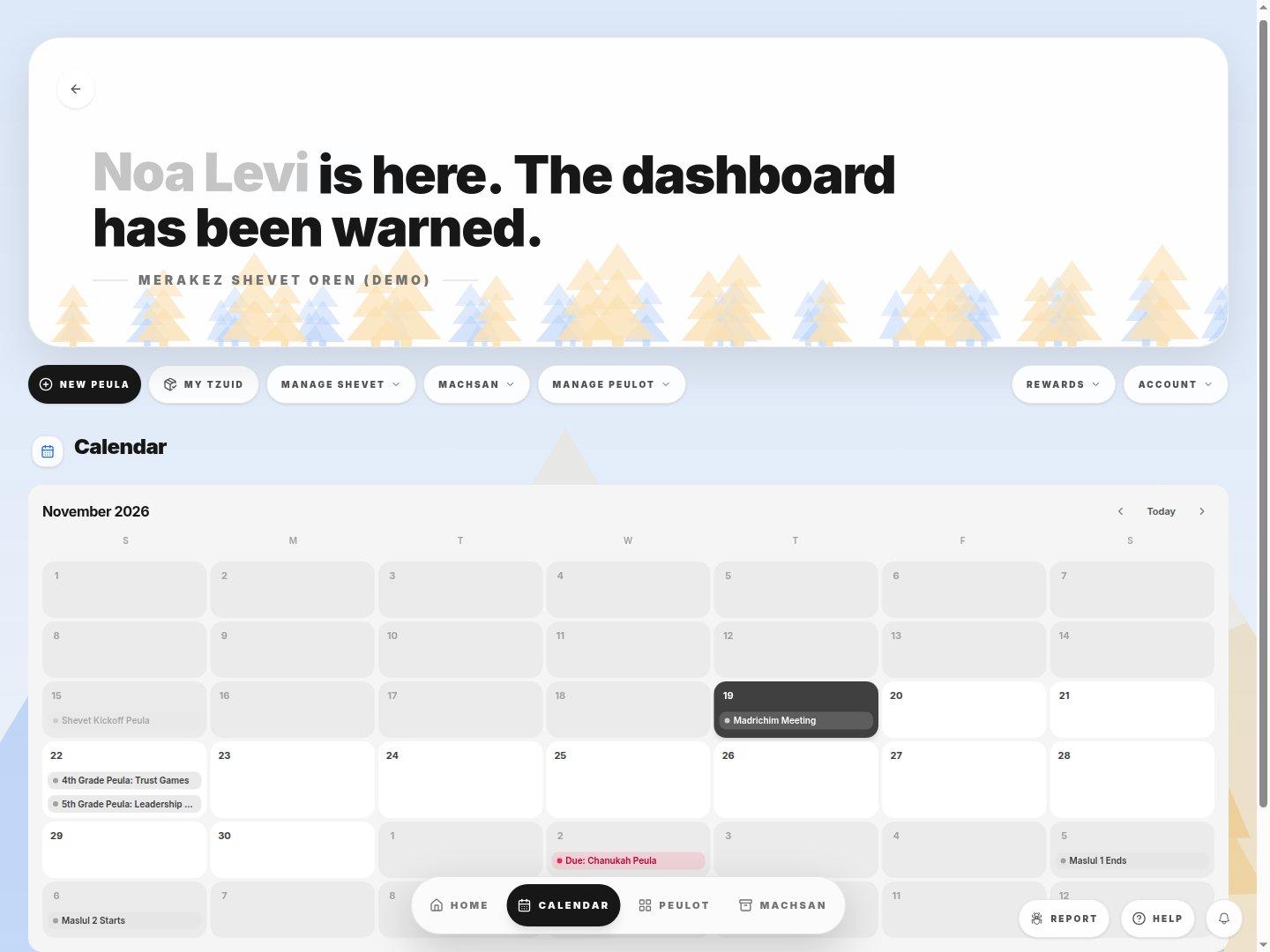
- Month gridSelect a date to see its events or start adding one.
- Existing eventSelect its title to open its details rather than creating a second event.
- TodayReturns you to the current date after browsing another month.
- 1Open Calendar from the shevet dashboard and use the month arrows to find the date.
- 2Select the date and choose Add event, or select an existing event you can edit.
2.Work through the event form
Details is the first part of the event form. The Attendance and Audience steps answer different questions: whose roster to count, and whose calendar shows the event.
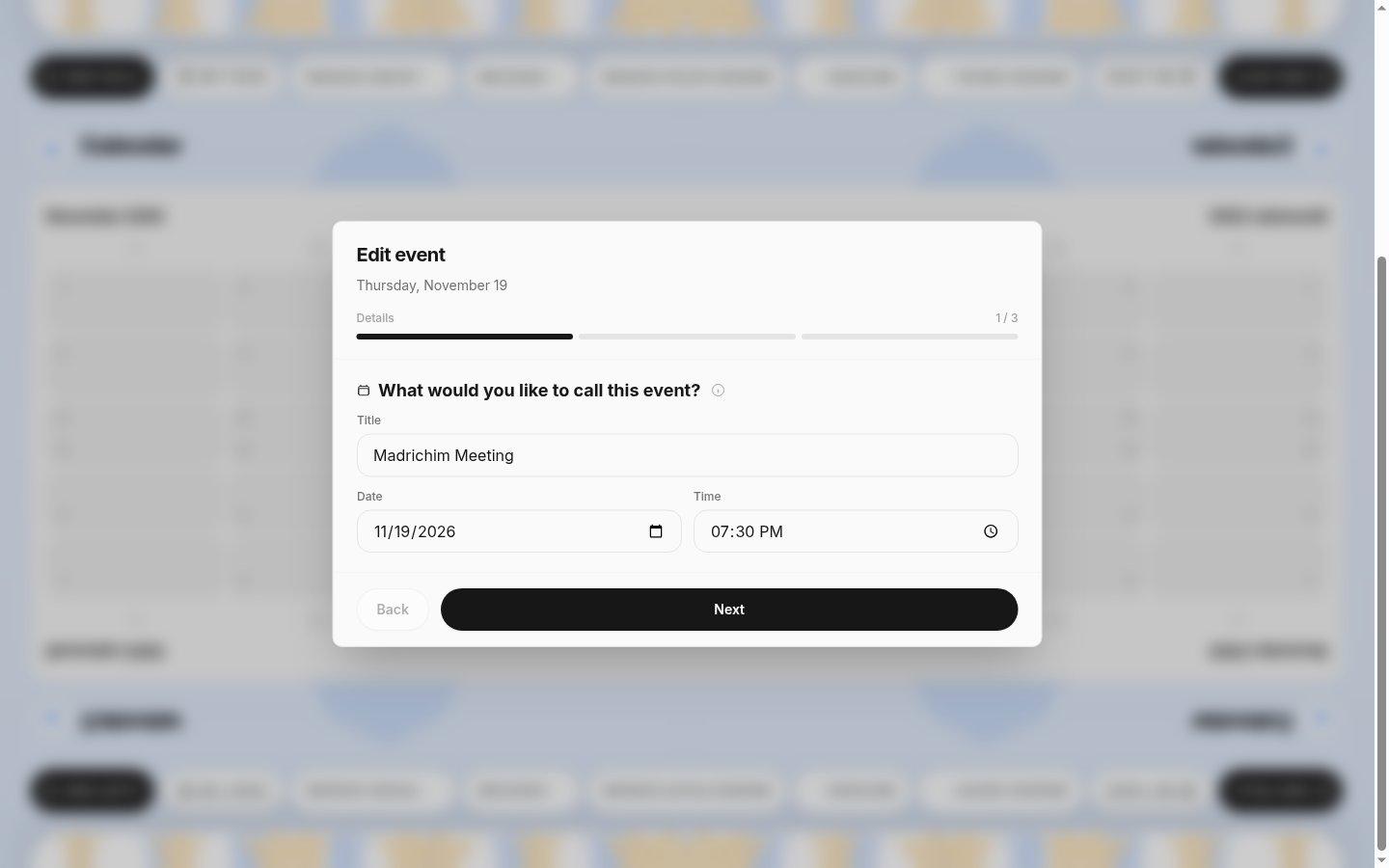
- Three stepsMove through the form in order so you do not forget attendance or audience.
- Event titleUse a title people will recognize when selecting it from an editor or attendance page.
- Date and timeCheck both fields, especially when editing from the wrong day on the calendar.
- NextMoves to the next section. Save on the final section.
- 1Enter the title and time. For a new event, review repeating options before continuing.
- 2Set attendance only for the chanichim rosters you need. Then select the Campfire users who should see it under Audience.
- 3Create or save the event, then reopen it from the calendar to check the final time and audience.
If you cannot do this
- A title is required before you can continue or save.
- Attendance controls appear only for people who can manage attendance dates.
- If you cannot edit an event, you can view it but need someone with calendar editing access to make changes.
Where to look
Add event
the selected-date popup in Calendar