Calendar and attendance
Record Attendance for a Tzevet
Choose the activity date, find each chanich, and save the right attendance status directly in the tzevet page.
At a glance
- 1From Attendance, open the tzevet whose attendance you need to record.
- 2The roster contains that tzevet's chanichim, not its madrichim. For shachbag attendance, use a shachbag tzevet with its members entered as chanichim.
- 3Choose the correct date. The page starts on the nearest available date, so confirm it before making changes.
- 4Use search to find a chanich quickly, then choose that person's attendance status in the table or cards.
- 5Each change saves in the background; keep the page open briefly if your connection is slow.
- 6Add or edit chanichim only when the roster needs updating. Deleting a chanich also deletes all their past attendance records.
Step-by-step walkthrough
1.Understand the tzevet attendance page
This page holds one tzevet's roster and every official attendance date. Marking a status saves it straight away.
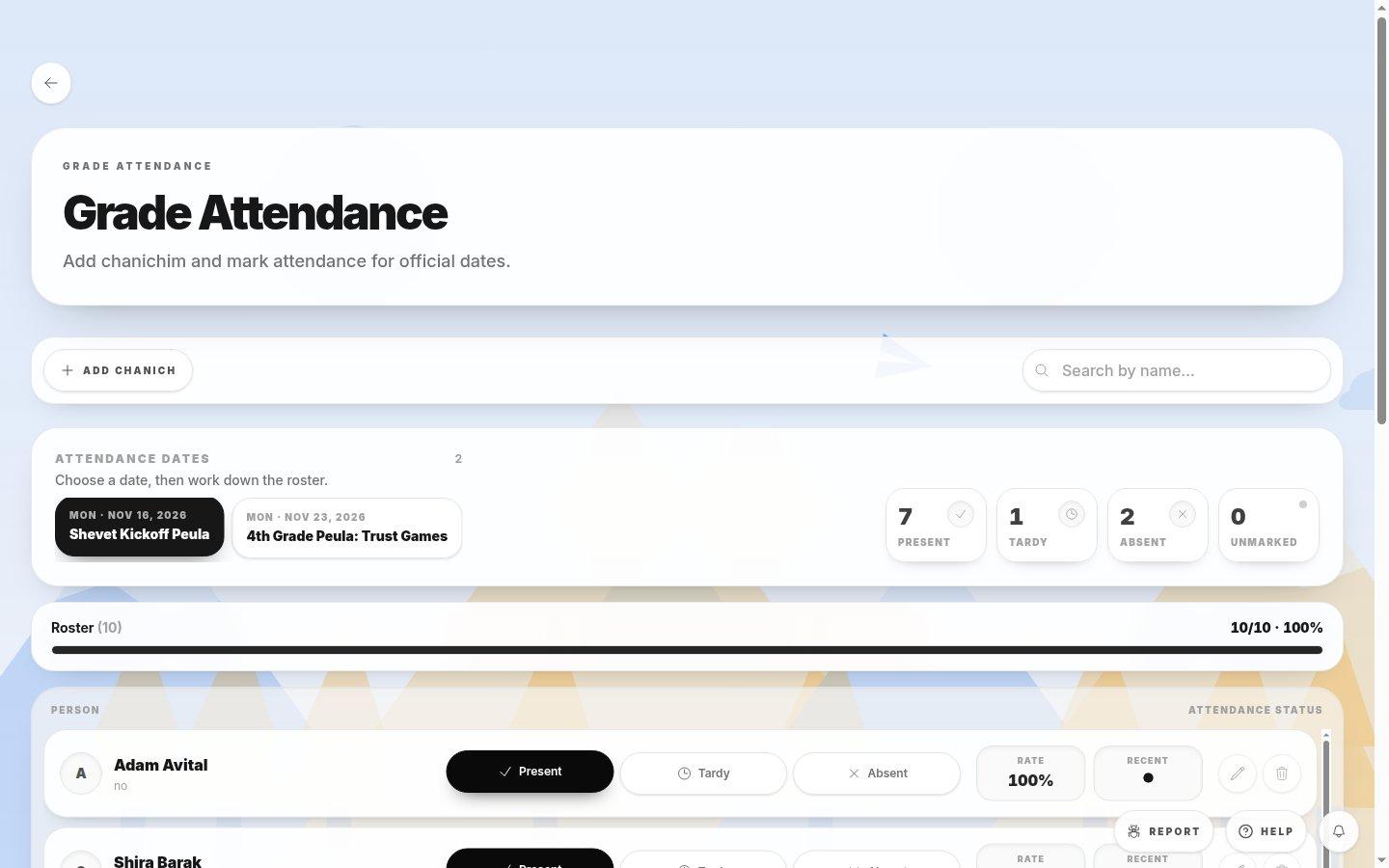
- Add chanichAdds a new chanich to this tzevet's roster. Use it only when the roster itself is missing someone.
- Search by nameFilters the roster to the chanich you type, which is faster than scrolling a large tzevet.
- Attendance datesEach pill is a calendar event with attendance tracking. The dark pill is the date you are editing; check it before you mark anyone.
- Totals for this dateHow many chanichim are Present, Tardy, Absent and still Unmarked on the selected date. Aim for zero Unmarked.
- Roster progressHow many chanichim on the roster have a status for this date, as a count and a percentage.
- Status buttonsChoose Present, Tardy or Absent for each chanich. The selected status turns dark.
- Rate and RecentRate is this chanich's attendance across all dates. Recent shows their latest statuses so you can spot a pattern.
2.Record attendance for a date
- 1Open Attendance from the dashboard and select the tzevet.
- 2Select the date pill for the activity. The page opens on the nearest available date, so confirm the title and date first.
- 3Work down the roster and choose Present, Tardy or Absent for each chanich. Use search to jump to a name.
- 4Watch the totals: when Unmarked reaches 0 and the roster bar shows 100%, every chanich has a status.
- 5Keep the page open for a moment on a slow connection. If a save fails, the button returns to its previous status so nothing is lost silently.
Tip: Shachbag attendance works the same way: use a shachbag tzevet whose members are entered as chanichim.
3.Fix the roster
- 1Select Add chanich to add someone who is missing from the roster.
- 2Use the pencil button at the end of a row to correct a name or details.
- 3Use the trash button only if you mean to permanently delete the chanich and all their past attendance records. Do not use it just to remove them from future dates.
If you cannot do this
- If no date is available, create a calendar event with attendance tracking enabled first.
- If a save fails, the page restores the previous status instead of silently losing the record.
Where to look
Attendance records
a tzevet attendance page