Planning a Peula
Review and Update Tzevet Budgets
Use the Finance overview to compare allocated money, net spending, remaining balance, and spending trends.
At a glance
- 1Open Finance; it starts on the Overview tab.
- 2Read each grade panel: Allocated is the budget, Spent is net spending, and Remaining is the amount still available in the displayed period.
- 3Use the progress bar and color to spot a budget that is close to or over its limit.
- 4Select a grade to inspect its details and period.
- 5If you have editing access, select a grade, choose Change allocation or Correct net spending, and save the amount.
Step-by-step walkthrough
1.Read the Finance overview
Overview shows how much money the shevet has left in the current period and how each tzevet is pacing against its allocation.
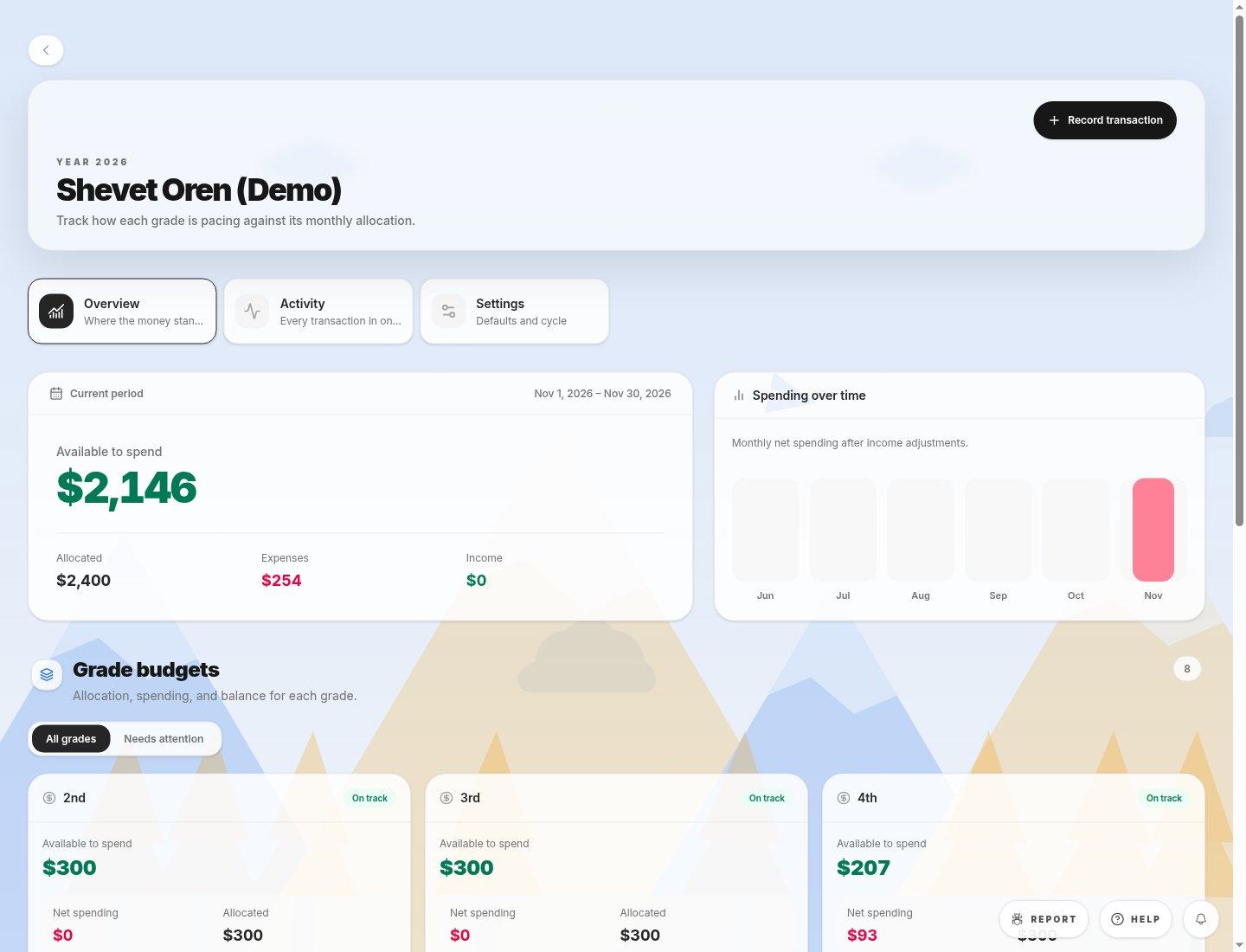
- Record transactionAdds an expense or income entry. It updates the budget totals as soon as it is saved.
- Overview, Activity and SettingsOverview is this page. Activity lists every transaction. Settings holds default allocations and the budget cycle.
- Current periodAvailable to spend is Allocated minus net spending for the whole shevet. Expenses and Income show what went out and came in during the dates at the top right.
- Spending over timeNet spending for each month, so you can see when spending peaks.
- Grade budgets filterAll grades shows every tzevet. Needs attention shows only tzevatim that are close to or over their allocation.
- Tzevet budget cardAvailable to spend, Net spending and Allocated for one tzevet. The Used bar fills as the tzevet spends; select View budget for its details.
2.Check and update a tzevet budget
- 1Open Finance from the dashboard. It opens on Overview.
- 2Read Available to spend for the whole shevet, then scroll to Grade budgets.
- 3Select Needs attention to see only the tzevatim that are close to or over budget.
- 4On a tzevet card, compare Net spending with Allocated and look at the Used percentage.
- 5Select View budget to open the tzevet's details. If you have editing access, choose Change allocation or Correct net spending and save.
Tip: A negative Available to spend means the shevet has spent more than it allocated for this period.
If you cannot do this
- No grade panels means there are no grade budgets for the current period.
- Archived shevatim are read-only, so budget editing controls are unavailable.
Where to look
Overview
the Finance page