Planning a Peula
Review Finance Activity
Use the Finance Activity tab to trace the transactions behind each tzevet's budget.
At a glance
- 1Open Finance and choose Activity below the Finance header.
- 2Review the transaction list to see the expenses, income, and other budget changes recorded for the shevet.
- 3Open an entry when you need its details, then use the amount, date, and linked context to reconcile a budget card.
- 4Return to Overview after reviewing activity to see the updated budget totals and charts.
Step-by-step walkthrough
1.Read the Activity tab
Activity is the full list of money in and out, grouped by day. Use it to explain the numbers on a budget card.
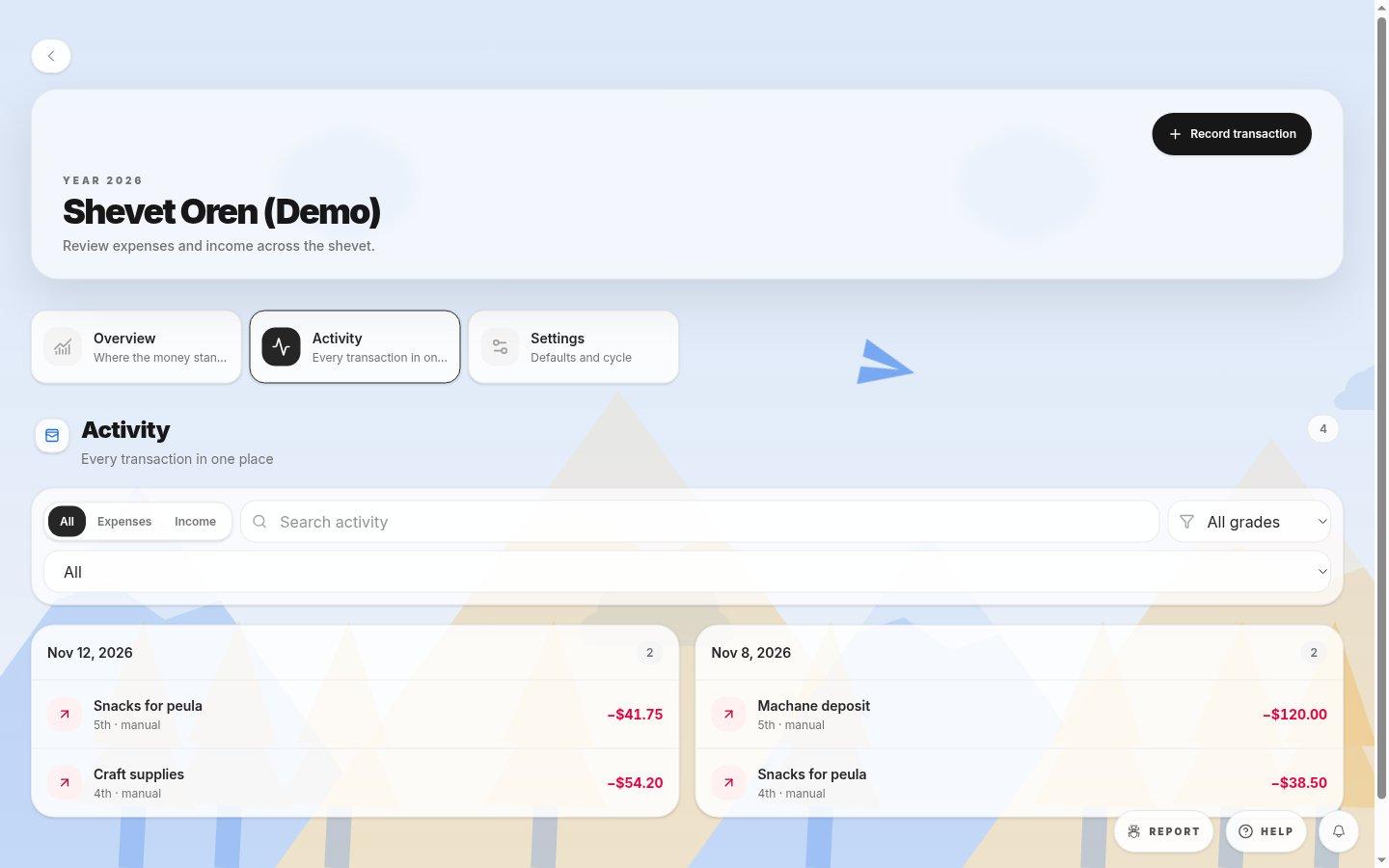
- All, Expenses, IncomeShow every transaction, or only money spent or received.
- Search activityFinds transactions by description, for example “snacks”.
- Tzevet filterShow transactions for one tzevet only.
- Day groupAll transactions recorded on one date, with the count at the top right.
- Transaction rowDescription, tzevet, how it was recorded (for example manual) and the amount. Expenses are shown in red with a minus sign.
2.Reconcile a budget
- 1Open Finance and select the Activity tab.
- 2Choose the tzevet in the tzevet filter so only its transactions appear.
- 3Select Expenses to hide income, then search for a description if you are looking for one purchase.
- 4Add up the amounts and compare them with Net spending on that tzevet's card in Overview.
- 5Open an entry to see its details. Editing or removing it depends on your finance permission.
If you cannot do this
- An empty activity list means no finance transactions have been recorded for this shevet.
- Editing or removing a transaction is limited by your finance permission and is disabled in archived shevatim.
Where to look
Activity
the Finance page