Getting started
Change your password or delete your account
Use the security controls carefully: password changes are reversible; account deletion is not.
At a glance
- 1To change a password, enter the current password, a new password of at least six characters, and the same new password again. The update button becomes available only when all three values are valid.
- 2If you signed in with Google and do not use a Campfire password, the password section may not be relevant. Keep using your Google account security settings for that sign-in method.
- 3Account deletion is in the Danger zone at the bottom of the page. Select Delete account once to reveal the final confirmation, then select Delete again only if you are certain.
- 4Deleting the account signs you out and returns you to the start page. Treat it as permanent: do not use it to leave a shevet or fix a profile problem—use the relevant shevet or profile controls instead.
Step-by-step walkthrough
1.Choose the account action you actually need
Changing a password changes how you sign in. Deleting your account is permanent and is not a way to leave just one shevet.
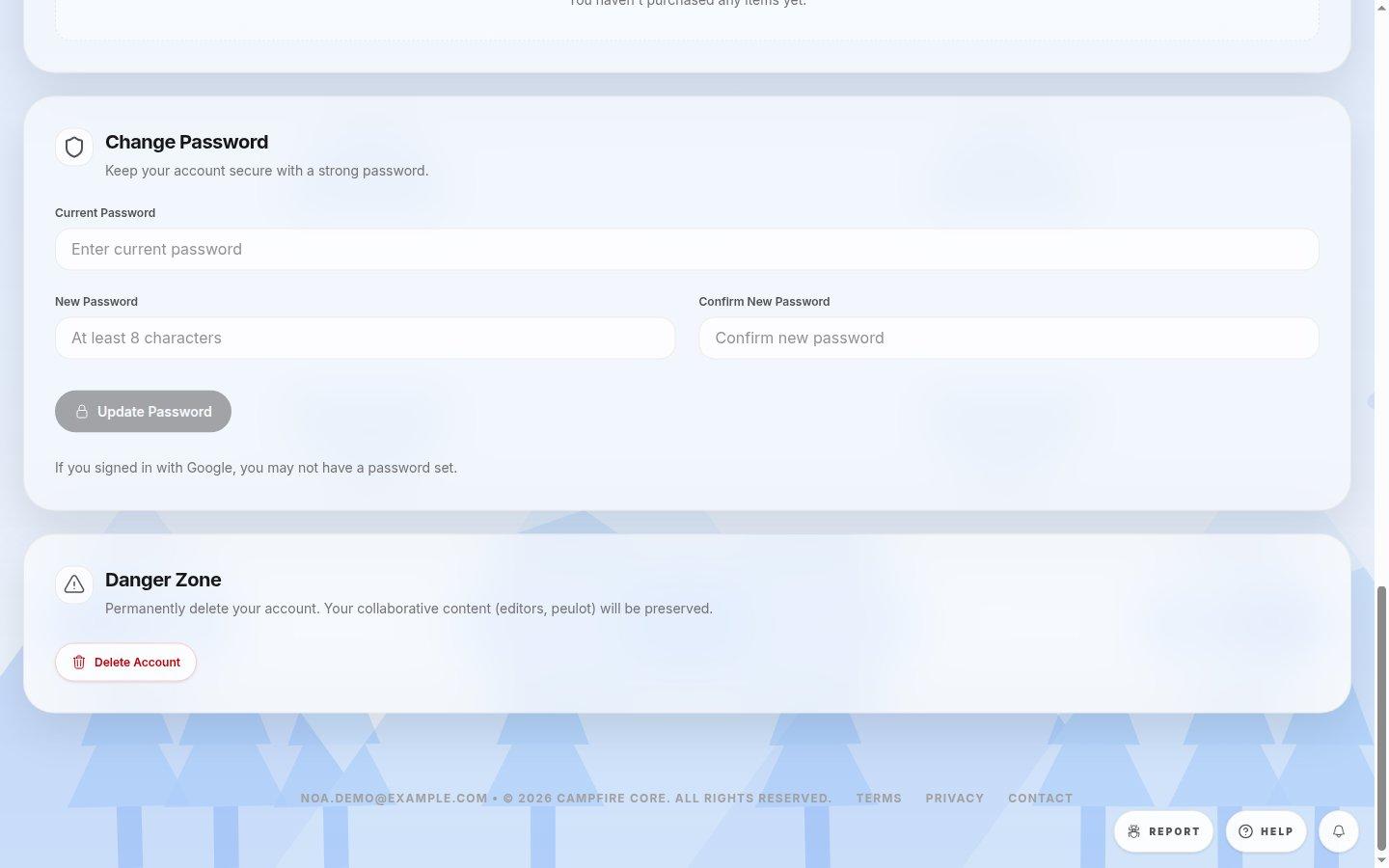
- Change PasswordUse this only if your Campfire sign-in uses a password. Google sign-in security is managed through Google.
- Update PasswordSubmit after the new value meets the requirement shown and both new entries match.
- Delete AccountOpens a separate final confirmation. Stop here if you are only fixing profile details.
- 1For a password change, enter the current password and enter the new one twice. Check the requirement shown in the form before submitting.
- 2Select Update Password and wait for confirmation. Do not share either password when asking for help.
- 3For permanent account removal only, scroll to Danger Zone. Read the final confirmation before proceeding; the action signs you out.
Where to look
Change password
Lower Account settings
Danger zone
Bottom of Account settings