Getting started
Finish first-time setup
Set your theme, language, and editor layout in the welcome screen.
At a glance
- 1Use Continue in the welcome screen to begin setup.
- 2Choose light or dark mode.
- 3Choose English or Hebrew.
- 4Choose the standard or Google Docs-style editor layout, then select Finish.
Step-by-step walkthrough
1.Choose preferences for your own account
The welcome flow asks about appearance, language, and editing style. The Settings screenshot shows where those same choices live after setup. They affect your account, not your shevet.
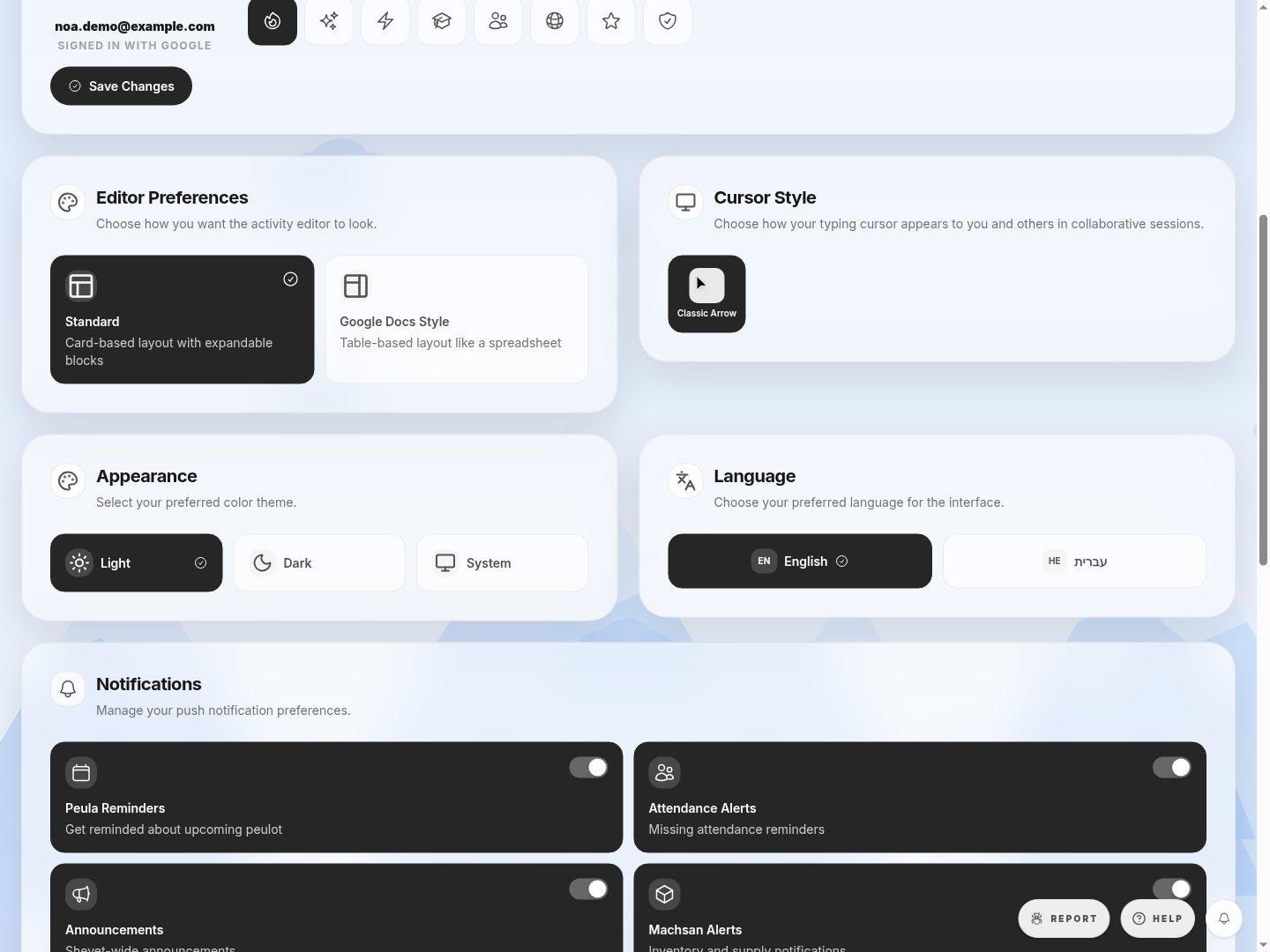
- Editor layoutStandard uses cards; Google Docs Style uses a table-like layout.
- AppearanceChoose the contrast that is easiest for you to read.
- LanguageHebrew changes the interface direction as well as its labels.
- 1Choose Continue on the welcome screen and select Light or Dark.
- 2Pick English or Hebrew to match the interface you prefer.
- 3Choose the editor layout and select Finish. If you change your mind, use Account Settings without repeating setup.
If you cannot do this
- You have already completed the welcome flow.
- You can change your preferences later from Settings.