Getting started
View an archived shevet
Open a past shevet year when you need to look back at its work.
At a glance
- 1Scroll to Archived Years on the main dashboard.
- 2Choose Show archive to reveal past workspaces.
- 3Select the shevet card you want to review.
- 4Use the archived workspace to look at previous Peulot and records.
Step-by-step walkthrough
1.Find the right archived year
Archived workspaces let you look back without changing the original records. Use an active workspace to plan new work.
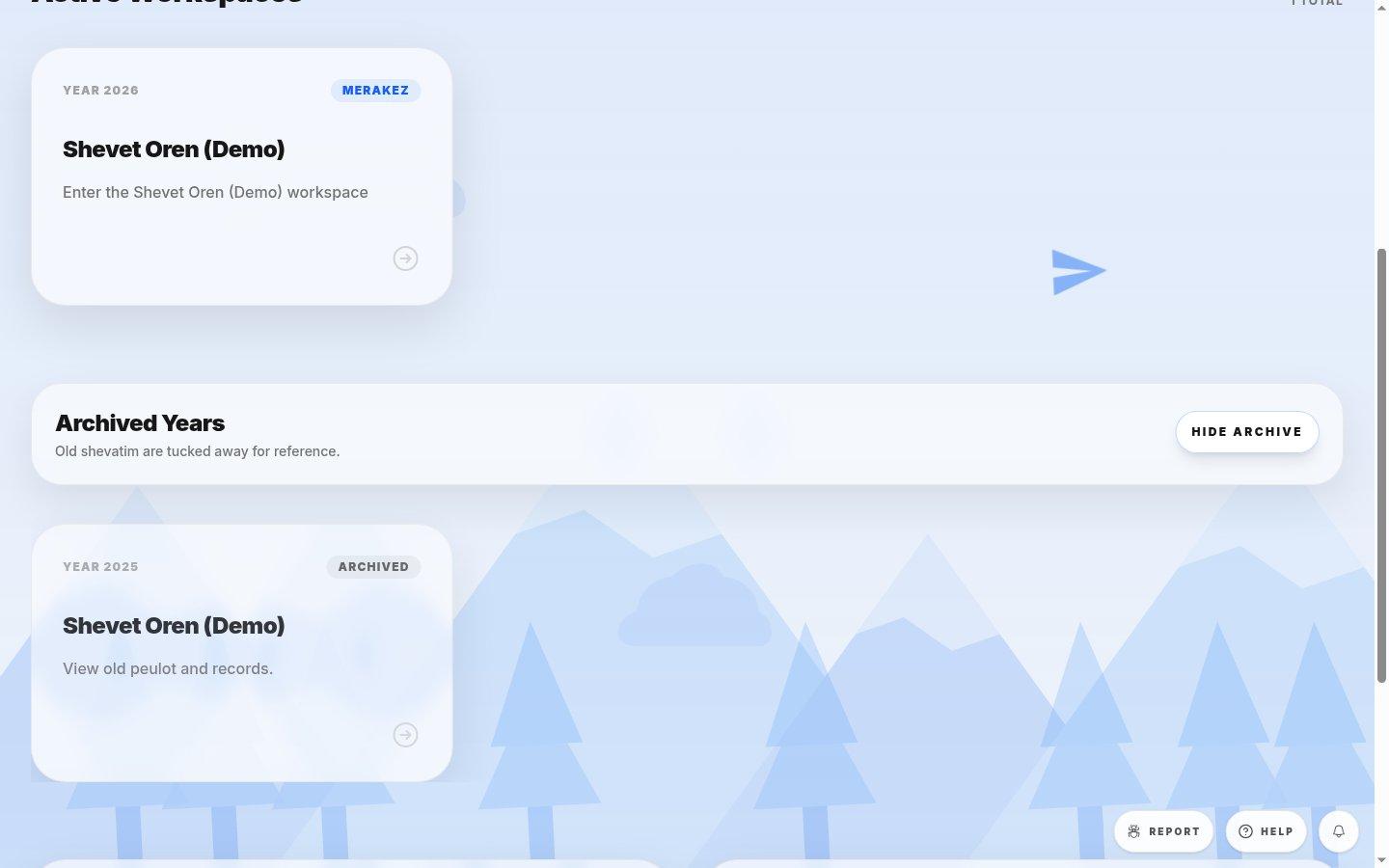
- Archive toggleExpands or collapses the list without changing any workspace.
- Archived workspaceCheck the year before you open it; a shevet can have the same name every year.
- 1Open All Shevatim and scroll past Active Workspaces to Archived Years.
- 2Choose Show archive and open the card for the year you want.
- 3Review the old Peulot or records you can access, then return to All Shevatim to resume current work.
If you cannot do this
- No archived years are available to your account.
- You do not have access to that past shevet.
Where to look
Show archive
the Archived Years section below active workspaces