Working together
Remove a Shared Peula
Remove the published library copy when it is outdated, incorrect, or should no longer be shared.
At a glance
- 1Review the card and its visibility before choosing Delete.
- 2Select Delete and read the confirmation prompt carefully to make sure you chose the correct Peula.
- 3Confirm the deletion only when the shared copy should disappear from the library.
- 4If the original Peula is still useful privately, keep it in your normal Peulot library; removing the shared copy is a separate action.
Step-by-step walkthrough
1.Remove the published copy only
Use this workflow to take a reusable item out of the shared library. It is separate from deleting the original working Peula.
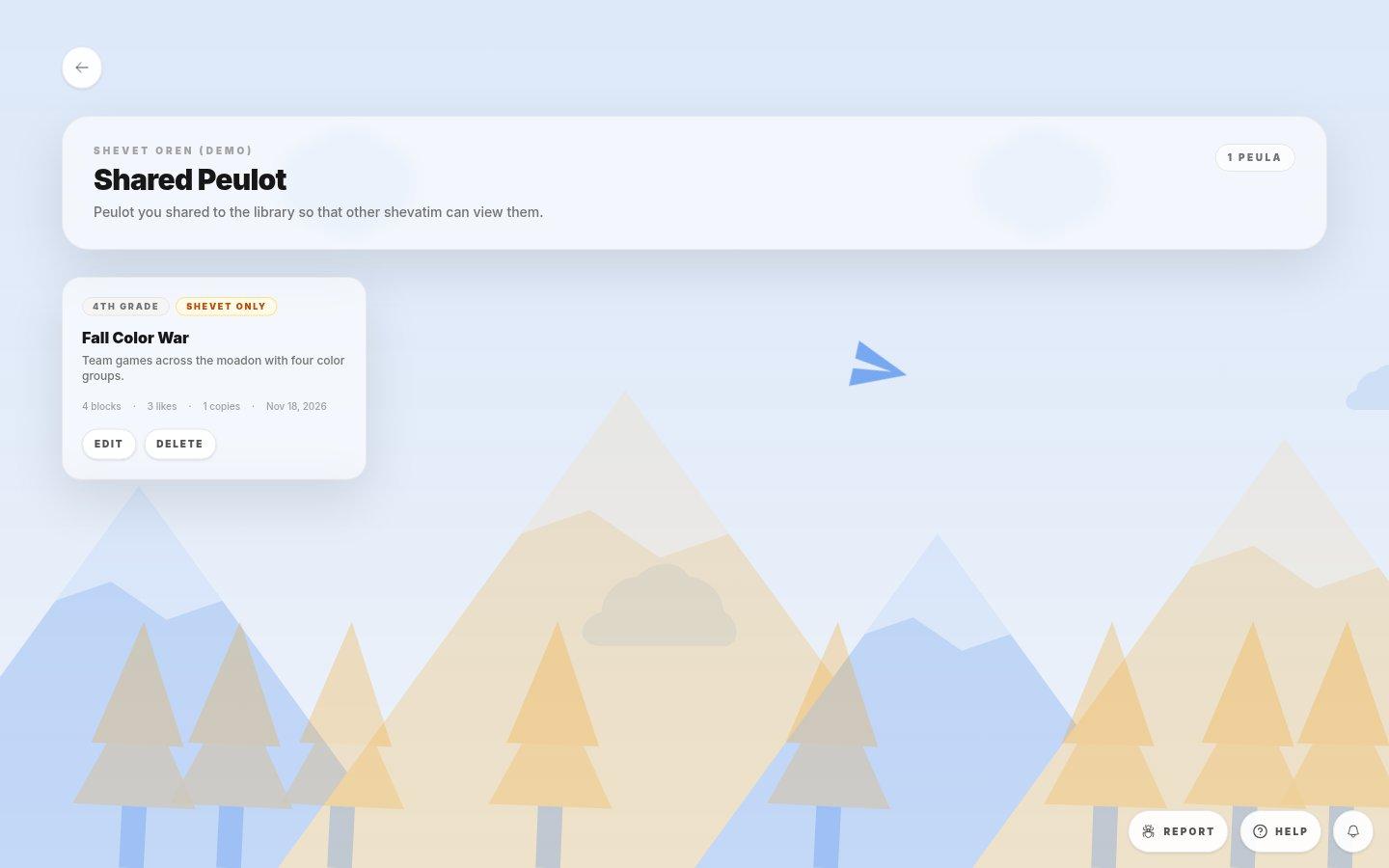
- Published item detailsCheck the title and visibility before choosing the card’s Delete action.
- 1Find the item in Shared Peulot, not in My Peulot. Check whether editing it or narrowing visibility would meet your need instead.
- 2Choose Delete on the shared card and read the confirmation. Cancel if it identifies a different item.
- 3After confirming, verify that the shared card is gone. Keep the original in the normal library if you still need it.
If you cannot do this
- Deletion requires shared-library management permission.
- Removing the shared copy cannot be undone from this page, so edit visibility or content instead when the Peula should remain available.
Where to look
Delete
a Shared Peula card