Working together
Navigate Assignments
Use the Assignments page to find shared work by title, recipients, due date, and current status before opening it.
At a glance
- 1Open Assignments from the shevet dashboard.
- 2Read each assignment card for its title, number of target grades, due date, and status.
- 3Open the card for the assignment you need; its workspace is separate from this listing page.
- 4Use the back button to return to the shevet dashboard. If the list is empty, create the first assignment only when you have the needed management access.
Step-by-step walkthrough
1.Distinguish the listing from an assignment workspace
The Assignments page is an index. Open a card to edit a template or review its delivery; the list itself does not edit recipient copies.
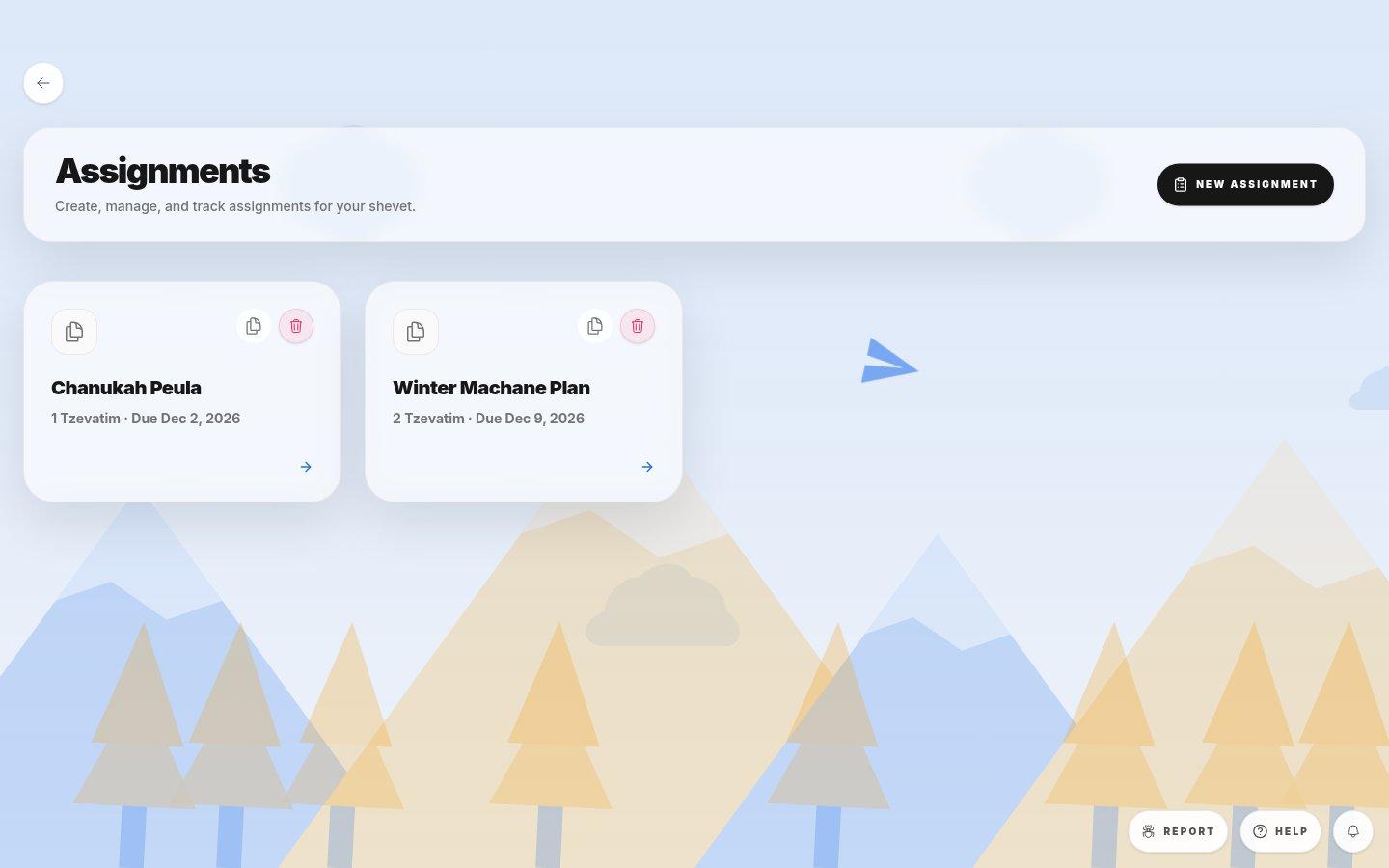
- New assignmentStarts a new template, if your role can manage assignments.
- Assigned templateRead the title, number of target tzevatim, and due date.
- DraftA draft is still being prepared and is not yet assigned.
- 1Open Manage Peulot and choose Assignments. Identify the assignment by title and deadline.
- 2Open the card to work on its template. Use the template’s assignment controls to review recipients.
- 3Return to the listing to open a different assignment, or use Back to return to the dashboard.
If you cannot do this
- You only see assignments that your grade memberships or management role allow you to access.
- An archived shevet shows its assignments but does not offer creation.
Where to look
Assignments
the Assignments dashboard