Working together
Review and Manage Announcements
Filter the message list, edit active board announcements, and remove messages that should no longer appear.
At a glance
- 1Use All, Board, and Push filters to narrow the list to the message type you need.
- 2Read each row's audience, publishing time, and status before changing it.
- 3Use the edit control on a board announcement to correct its title, content, audience, schedule, Active state, or pinned status.
- 4Use delete only after confirming the message should disappear; it removes the item from the list.
- 5Keep pinned messages limited to the most important current updates so the dashboard stays useful.
Step-by-step walkthrough
1.Find and review the current message
The list combines announcements and notifications. Read the target and status before editing so you do not change the wrong entry.
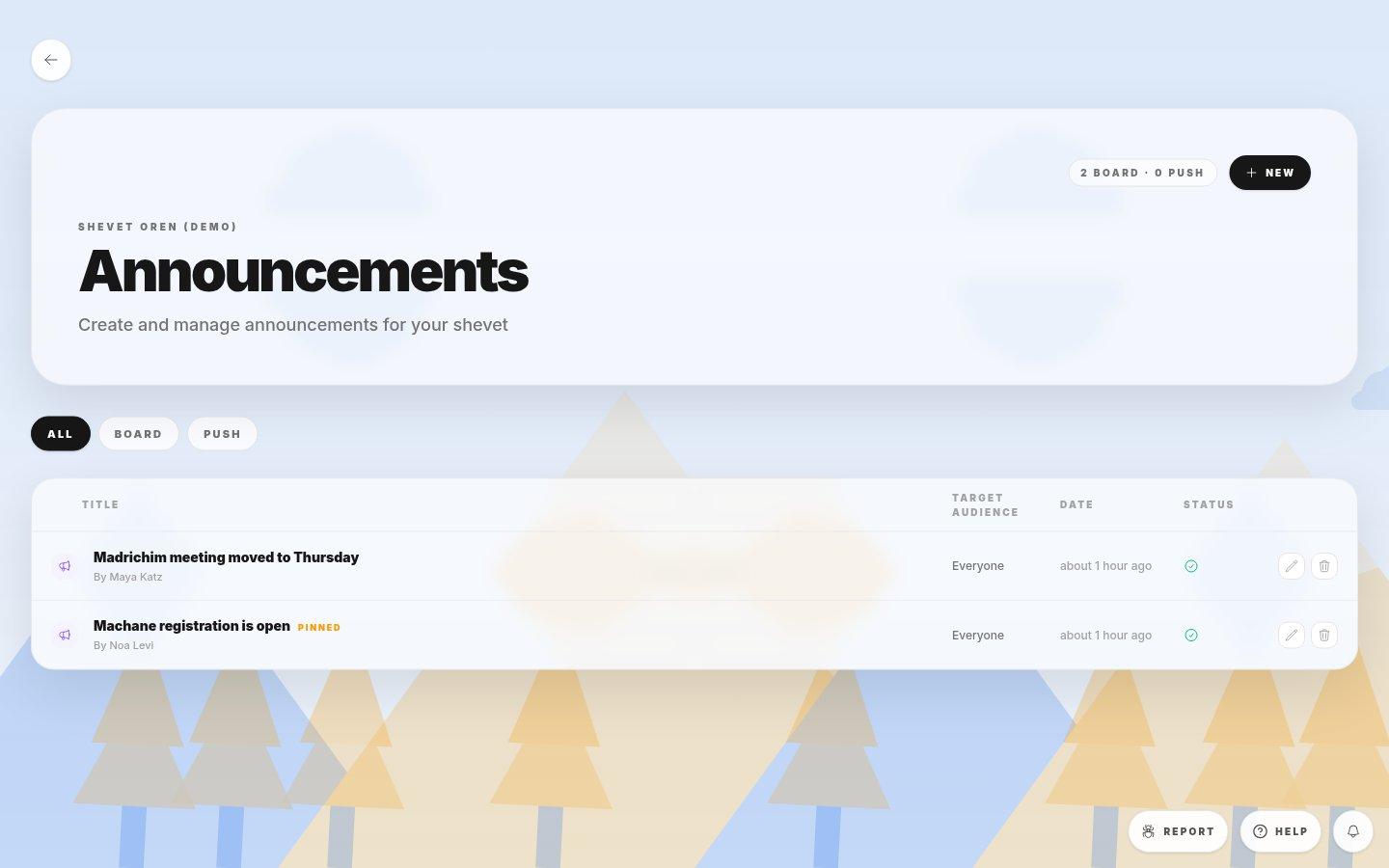
- All, Board and PushUse Board for announcements and Push for notifications. All shows both.
- Message rowRead the title, target, and status before using the row actions.
- 1Open Manage Shevet, then Announcements. Choose Board or Push if you know the channel.
- 2Find the entry by title and check who it targets. Use its edit control for a correction.
- 3For a board notice that is no longer important, remove its pin or deactivate it as appropriate. Check the resulting status.
If you cannot do this
- Editing and deleting require announcement-management permission.
- Push notifications do not use the board announcement edit flow once sent.
Where to look
Announcement list
the Announcements page