Working together
Create an Announcement or Push Notification
Choose the message type, write it clearly, target the right audience, and publish or schedule it.
At a glance
- 1Open Announcements and select the button to create a message.
- 2Choose Announcement for a board post or Notification for a push-style message.
- 3Add a clear title and message. Use the formatting tools to make longer board announcements easy to scan.
- 4Choose Everyone, Roles, or Grades, then select the matching roles or tzevatim when the audience is limited.
- 5Optionally schedule the message. For board announcements, set Active to show it and Pin only when it deserves priority.
- 6Create or schedule the message, then check the list to confirm its audience, status, and timing.
Step-by-step walkthrough
1.Write the message before choosing who sees it
An announcement belongs on the board; a notification is a push message. Confirm the audience and timing before using either.
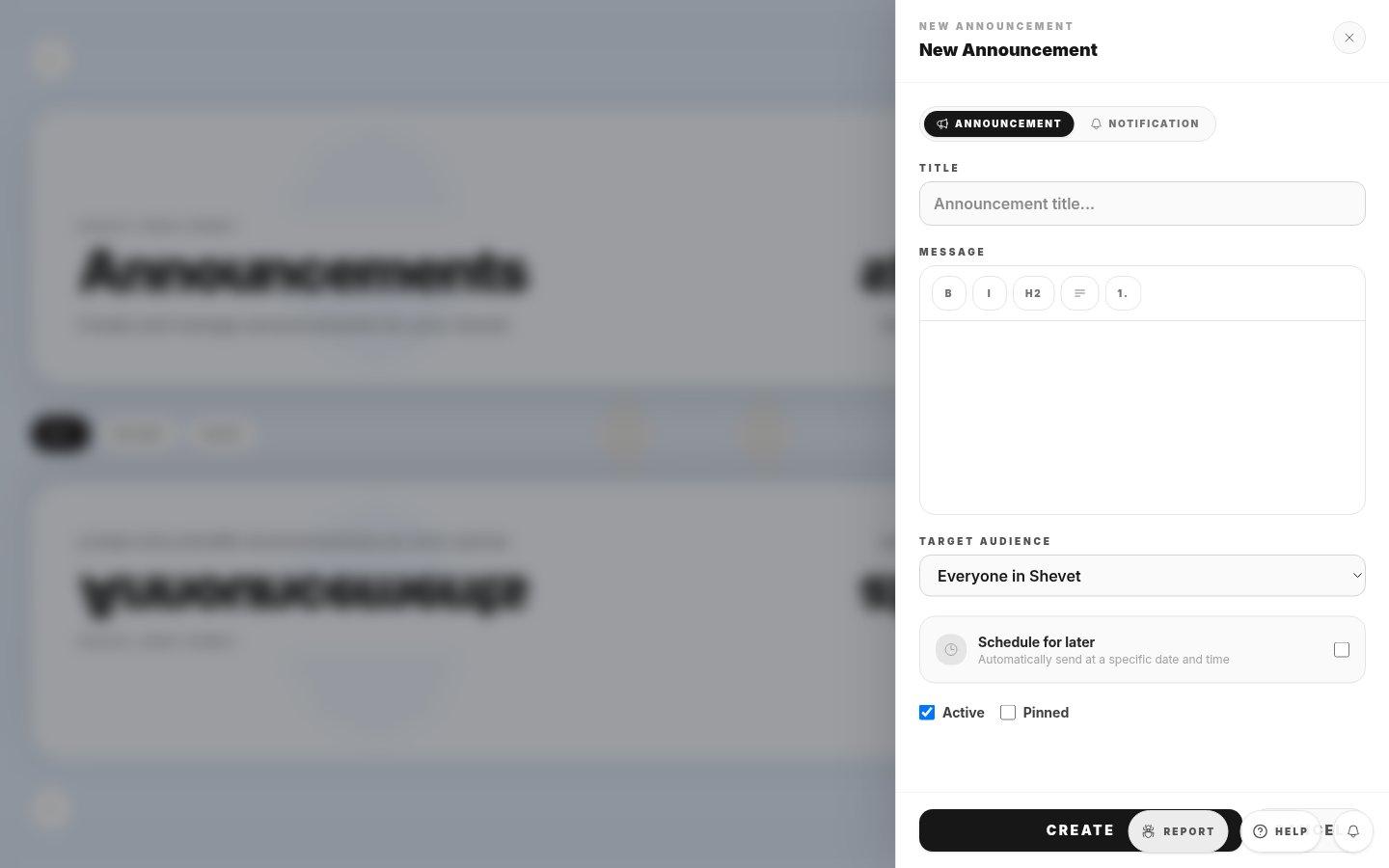
- Announcement or NotificationPick the delivery type before writing, so the message fits the channel.
- TitleSay what changed in a short title. Include dates and instructions in the body.
- AudienceEveryone in Shevet is the broadest option. Pick specific roles or tzevatim for a targeted message.
- Schedule for laterReview the scheduled date and time if you do not want to publish now.
- 1Choose New and select the delivery type. Write a title and the next action readers need to take.
- 2Choose the audience. For a message about one tzevet, check that the whole shevet is not selected.
- 3Set a schedule only if needed. Review title, audience and timing before selecting Create.
If you cannot do this
- Creating messages requires the announcement-create permission.
- Choose at least one grade or role when targeting Grades or Roles; otherwise the audience would be empty.
Where to look
Create announcement
the Announcements page